Log in to Sage HR Online Services website
Summary
Description
Once you've set up your access to Sage HR Online Services, you can access it anytime to view your payslips and P60s. Find out below how to log in to Sage HR Online Services on a computer or tablet.
 TIP: Follow the steps if you're trying to log in to the Sage HR app.
Resolution
Before you try to log in
- As an employee user, you can log in once you have set up your access to Sage HR Online Services from your welcome email
 NOTE: Didn't receive a welcome email? Welcome email expired? Contact your employer. Only they can send or resend a welcome email to you.
 - If you're using your phone, log in using the Sage HR app. Avoid using your phone's mobile browser, for example, Safari on an iPhone or Chrome on an Android NOTE: If you don't have the Sage HR app, you can download the Sage HR app for free.
How to get to your login page
As an employee user, there are two ways to get to your login screen.
- Go to sage.hr/signin
- Your company's unique URL for Sage HR Online Services. This is in your welcome email or payslip notification email
EXAMPLE: https://joebloggscoffeeshop.sage.hr/signin
TIP: If you're a manager user with access to Sage 50 Payroll, you can also log in via ▼ Online Services Settings.
How to log in
- Enter your email address on the login page.
Make sure this email address is correct. There's no requirement to enter a password at this point. - Click CONTINUE TO SIGN IN. TIP: Get this error message? 'Your email address wasn't recognized'.
- If you've entered the correct email address, a Log in window opens. Enter your Sage account email address and password that you set up from your welcome email, then click Log in. TIP: Get this error message? 'Wrong email address or password entered'.
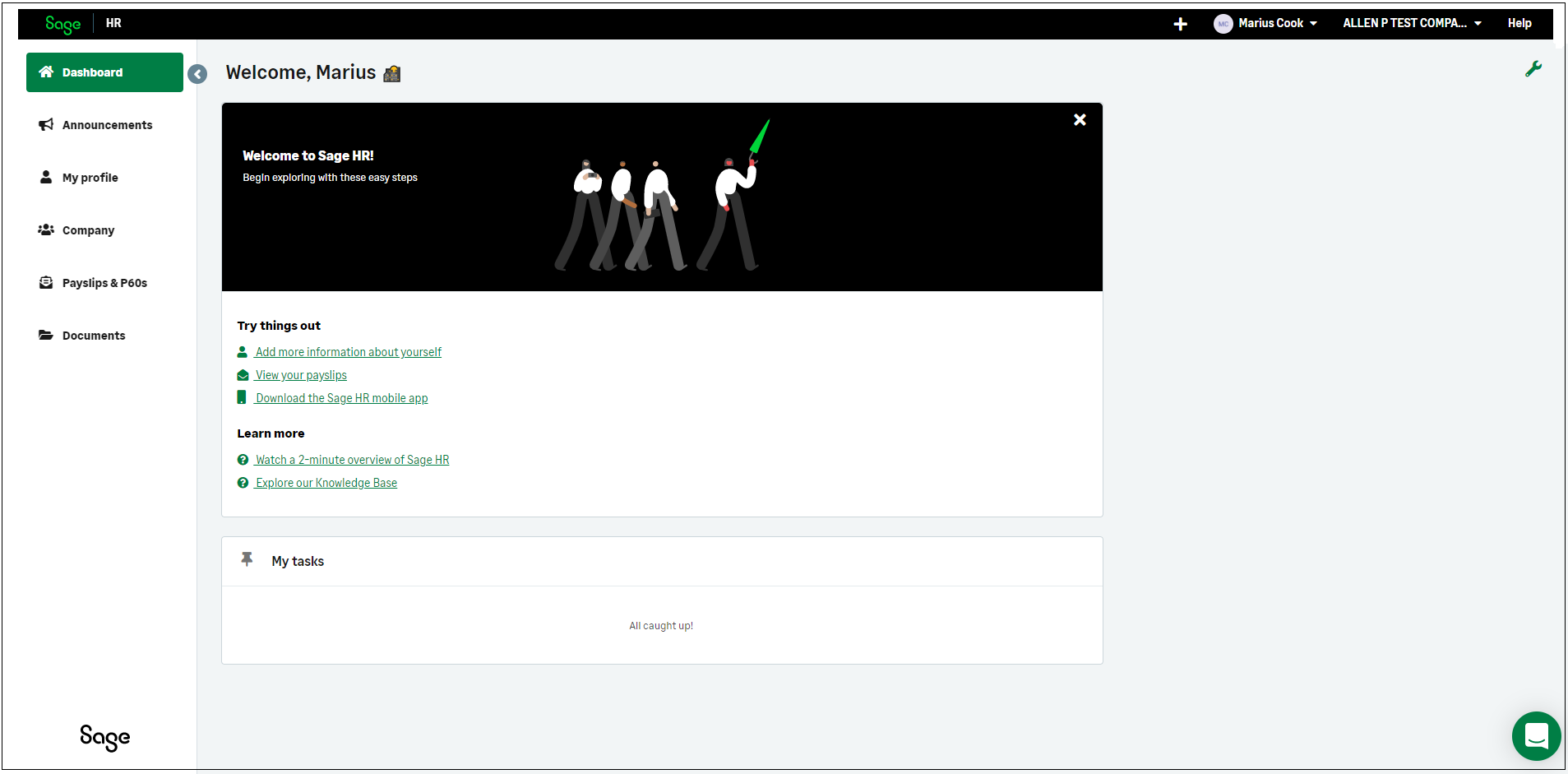
Once you log in, you'll see a page like the example below:
NOTE: Options available on this page may vary depending on which Sage HR modules your company uses. They also depend on the permissions your Sage HR administrator has assigned to you.
Next steps
If your employer uploads your payslips, you can view these when you log in. - View my payslips and P60s
Common logging in queries
▼ Common queries asked by Sage HR Online Services users
I'm having trouble logging in
If you're having issues logging in, there could be a few different reasons why this is happening. Run through some checks in the article to troubleshoot why you can't log in - I can't log into Sage HR Online Services.
I've forgotten what email address I need to log in with
You can only log into Sage HR Online Services using the email address your employer used to set up your account. This is the email address that received the welcome email. To check which email address this is, contact the person who processes your payroll.

I've forgotten my password
If you've forgotten your password, click Forgot password?, and follow the on screen prompts to reset it.
Visit our support page for more detailed steps on how to reset your password - Change password for Sage HR Online Services
My sign in page doesn't change
When logging in via sage.hr/signin, after entering your email address, the login page could display as the screenshot below.

If you enter an incorrect email address, the page won't update to show only your email address. It will display SIGN ME IN rather than CONTINUE TO SIGN IN. You won't be able to log in to Sage HR Online Services with the email you've entered. Verify the correct email address with the person responsible for processing your payroll.
Related Solutions
Solution Properties
- Solution ID
- 210122151157270
- Last Modified Date
- Fri Nov 24 09:30:23 UTC 2023
- Views
- 0