

Summary
Description
The Sage Accounts Data Service runs on the computer or server where your Sage 50 Accounts data is held. The service acts as a gateway and controls the reading and writing of data. Using this service increases the robustness of the system, improves data security and helps to optimise performance.
To maintain data integrity, the computer that holds the data can only use the windows operating systems stated in our recommended system requirements.
Resolution
Data is held on a different LAN/VLAN
This message can appear if your data server connects to a different local area network (LAN) or virtual local area network (VLAN) than your computer. To resolve this, we recommend you relocate your Sage 50 Accounts data to a computer using the same LAN/VLAN.If you're unsure how to check this, refer to your local IT support.
 TIP: If your data is held locally on your computer, try relocating it to a different location on the same computer.
Internet security software
Internet security software, like F-secure, can block network traffic when accessing card processing portals, such as Barclaycard. This can cause Sage Accounts to lose connection to the data service, and closes the program unexpectedly. Try disabling this feature in your internet security settings. Alternatively, keep Sage 50 Accounts closed when accessing a card processing portal.
On the computer where your data is held, and any remote sites as required, stop the following services.
- Press the Windows Key + R on your keyboard, enter Services.msc then select OK.
- Right-click the required service and select Stop.
| Version | Services |
|---|---|
| 31 |
|
| v30 |
|
| v29 |
|
| v28 |
|
| v27 |
|
| v26 |
|
- Clear the contents of the following folder:
 CAUTION: By default, the system can hide these folders. You can show them in Windows if you can't find the folders.
- 32 bit: C:\Windows\System32\config\systemprofile\AppData\Local\Sage\SSB\Accounts\Collaborate
- 64 bit: C:\Windows\Syswow64\config\systemprofile\AppData\Local\Sage\SSB\Accounts\Collaborate
TIP: Check if you're using a 32 or 64-bit version of Windows on Microsoft's website.
- Restart the services you stopped in step 1:
- Press the Windows Key + R on your keyboard, enter Services.msc then click OK
- Right-click the required service and select Start
If the message continues to appear, follow the If the issue persists section.
Restart the software. If the message appears again, you can check that the service is running.
TIP: If your data is on a server, control the service on that server. Access this remotely if your server isn't accessible. Contact your local IT support for help with this or if you're having difficulty stopping the service.
To do this, open the use the Data Service Manager:
- On the menu bar, click Tools then click Data Service Manager.
- Choose your version and click Connect.
- On the navigation bar, click Data Service Manager, then click Stop Service.
 NOTE: Alternatively, press the Windows Key + R on your keyboard and enter Services.msc then click OK, and check the status of the Sage 50 Accounts Service. To start the service, right-click the required Sage 50 Accounts Service and choose Start. If the service is running this suggests there's a problem with your network, or cabling test this before starting Sage Accounts again.
Rebuild the data
If you're using Sage 50 Accounts v31 or above, you can use the rebuild option.
- Ensure you have a backup of your data.
- In Sage 50 Accounts, go to File, then select Maintenance.
- Select the Rebuild option.
- Deselect all checkboxes apart from Column settings.
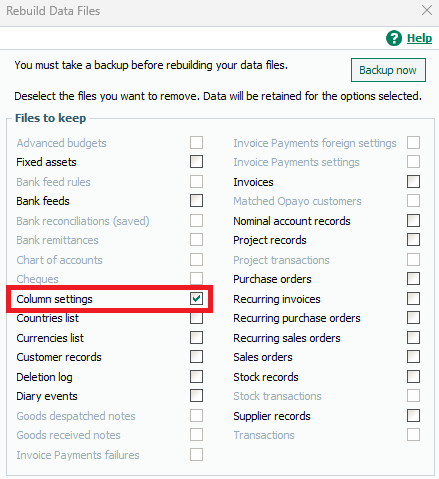
- Press OK then Yes on the confirmation message.
- Press OK on the Financial year message, then Yes on the confirmation message.
- Press OK on the successful message then Close on the File maintenance window.
Insufficient permissions
This can also be due to insufficient permissions on the data folder.
To resolve this, follow the steps in our Opening Sage Accounts shows 'Queue.dta is in use' article.
If the issue persists
You can also resolve this by deleting specific data files in the affected company.
- Check where your data is kept and note the relevant path in the company file.
- Press the Windows Key + R on your keyboard, enter Services.msc then select OK.
- Right-click the required service and select Stop.
| Version | Services |
|---|---|
| v26 and above |
Where xx is the version of your Sage software. For example, v33. |
- Browse to your data path noted in step 1 then double-click the ACCDATA folder.
- Right-click and delete the colmndat.dta and colindex.dta files then close the window.
- Restart the service.
If these steps don't resolve the issue, follow the steps our Troubleshooting data service issues article.
Upgrade your licence
Growing business? Add more companies, users, or employees to your licence with ease. Leave your details and we’ll be in touch.

 Africa
 Asia
Asia Australia
 Canada
 France
 Ireland
 Kenya
Kenya Nigeria
 Portugal
 South Africa
 Spain
Spain United Arab Emirates
 United States
 Germany