

Summary
Description
One of your options to set up 2FA is to use a third-party authenticator app, for example Google Authenticator or Microsoft Authenticator.
We recommend you set up 2FA using Sage Verify, as this makes authentication easier by sending you notifications that you tap to approve.
If you prefer to set up a third-party app, continue to follow this article.
Resolution
Set up 2FA
- Download and install the app of your choice.
- Open your authenticator app and choose the option to add a new account.
- Select the Scan a QR code option.
- Open an internet browser and go to the login screen for your Sage product or service and enter your login details.
- When you're prompted to set up 2FA, select Set up authentication.
- Select Authenticate a different way.
- Select Authenticator app.
- Use the QR scanner you opened in Step 3 to scan the ▼ QR code in the 2FA setup window.
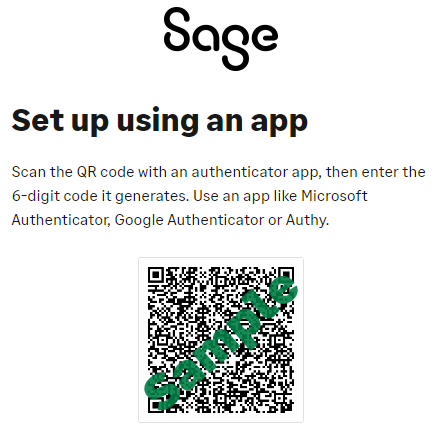
- Enter the 6-digit code from the authenticator app into the set up using an app screen, then select Continue.
- Make a note of your 24-digit recovery key and store it in a safe location.
- Select the I have saved my recovery key checkbox, then click Continue.
- The setup is now complete, and you can now log in to your account.
Set up a backup method
Once you’ve set up your primary 2FA method and noted your recovery key, it’s a good idea to add a backup method.
This is an alternative email address or phone number you can use to access a new recovery key to log in or reset your 2FA.
For more information on backup methods, and how to set them up, visit our set up a backup method for 2FA article.
Logging in with 2FA
For help with logging in, visit our log in using 2FA article.
 Africa
 Asia
 Australia
 Canada
 France
 Ireland
 Kenya
 Nigeria
 Portugal
 South Africa
 Spain
 United Arab Emirates
 United States
 Germany