ERROR: '1046. Your details aren't recognised by HMRC. Check your company information...'
Summary
Description
When you try to submit your payroll data to HMRC, sometimes the following error appears:
'1046. Your details aren't recognised by HMRC. Check your company information matches your Government Gateway credentials' in Sage Payroll.
It can occur if:
- Your Government Gateway credentials or business details are incorrect in Sage Payroll
- Your PAYE For Employers account isn't active
- The Government Gateway is busy at the time of your submission and can't validate your details
Resolution
We recommend you check the following then try the submission again.
Log in to the Government Gateway
You need to log in to the Government Gateway to confirm you have the correct credentials to submit to HMRC.
We recommend you use Chrome as your browser and open an Incognito window. This ensures you're not using any potentially incorrect log in details stored in the browser.
- Open your Chrome browser.
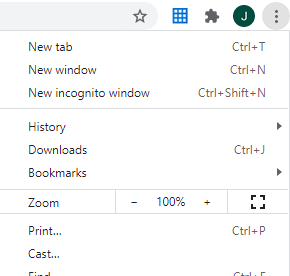
- To open an Incognito window, select the three vertical dots (Customise and control) from the menu.
- Choose a New Incognito window.
- Go to the Government Gateway at online.hmrc.gov.uk and sign in.
- Make a note of the user name and password used.
Once you log in, verify that your PAYE reference and account office reference are the same as those in Sage Payroll. For help with checking these details in the Government Gateway, contact HMRC.
If you can't sign into the Government Gateway, this confirms that the credentials you're using are incorrect. Contact HMRC for further advice.
Check the details in Sage Payroll
If you can log into the Government Gateway, check the details in Sage Payroll are correct.
Retry your submission
Once you've confirmed the details in Sage Payroll are correct, you must try to send your submission again.
- In Sage Payroll, select Summary from the menu bar.
- Under the HMRC Real Time Information (RTI) Scheme section, find the failed submission.
- Select Resolve and select a Late Reason if required.
- Untick Use saved credentials.
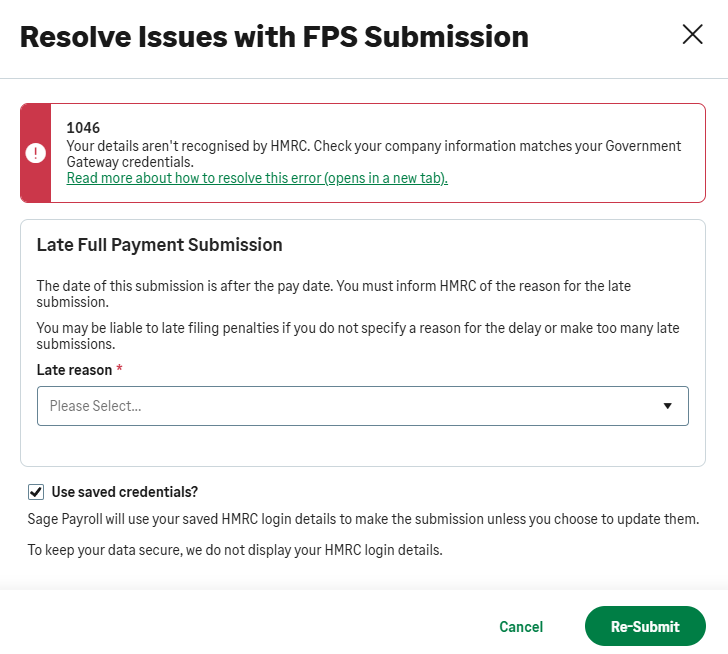
- Re-enter your Government gateway User ID and Password.
- Select Store credentials for future submissions.
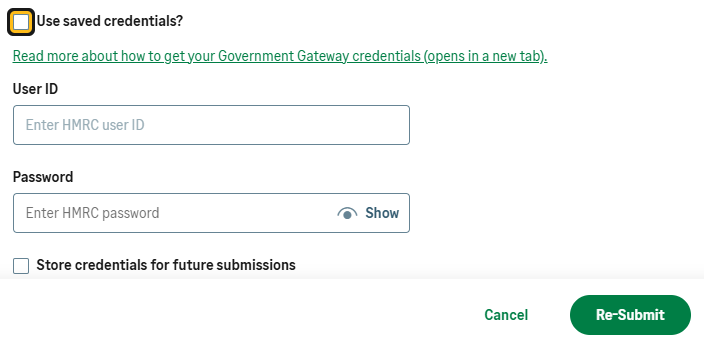
- Select Re-Submit.
I'm still getting error 1046
If you're still experiencing this error, contact HMRC for further advice. Ensure your PAYE For Employers service is active and working as normal.
If you receive any other errors, refer to the Submission errors article.
Related Solutions
Solution Properties
- Solution ID
- 222001000101772
- Last Modified Date
- Thu Jun 18 09:38:36 UTC 2026
- Views
- 0