Sage 200 Report Designer - How to amend the size and position properties of an object
Summary
Description
When editing documents in Sage Report Designer, when you add an object to the document you may want to alter its position or size.You can amend the position and size properties within the Properties pane to the right of the Report Designer window.
Resolution
These are the basic steps that explain how to amend the position and size properties of an object on your document. They include:
- To amend the size and position properties of an object
- To change the measurement unit
- To save the changes to your document
This article assumes that you have located the report or layout that you want to amend and opened it in Sage Report Designer. If you need further help with this, please refer to this article.
To amend the size and position properties of an object
- Report Designer > select the required object > Properties pane > amend the settings as required.
For information about the options available in the Properties pane, please refer to the Detailed Steps tab.
To change the measurement unit
- Tools > Options > Measurement drop-down list > choose the measurement unit required > OK.
To save the changes to your document
- Report menu > Report Properties > enter a new name and description for the document > OK.
Report Designer v1.3 and below - Report Explorer pane > select the document name > Properties pane > Name > enter a new name for the document > Enter.
- File > Save As > File name > enter a new file name > browse to the required location for your document > Save.
- File > Exit.
The following detailed steps contain everything you need to help you to amend the position and size properties of an object on your document.
This article assumes that you have located the report or layout that you want to amend and opened it in Sage Report Designer. If you need further help with this, please refer to this article.
To amend the size and position properties of an object
- To view the properties of the object, on the report design, select the required object.
- From the Properties pane, select the option you want to amend, then depending on the option selected, click the finder button
 or drop-down arrow
  and amend the settings as required.
 For information about the options available in the Properties pane, please refer to the following section, The options available in the Properties pane.
You have now amended the position and size for the selected variable. The next time you print your report or layout the new settings are applied.
The options available in the Properties pane
The following Position / Size options are available:
- Location
- Linked Position
- Linked Position Anchor
- Dimension
- Linked Dimension
- Linked Dimension Anchor
- Locked
- Auto Grow
- Word Wrap
Location
The Location option can be expanded to list the horizontal (X) and vertical (Y) positioning of an object on the page. The location can be amended by expanding the Location option and over typing the measurements entered in the X and Y lines.
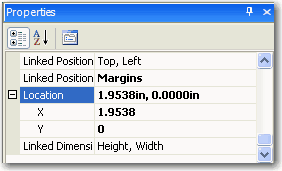
The location of the object is based on the settings in the Linked Position and Linked Position Anchor. For further information about the Linked Position and Linked Position Anchor, please refer to the relevant section below.
Linked Position
The Linked Position indicates the location on the document that the object is taking its location from. This can be a margin, a section, or any other object on the design. To open a further Link Position window displaying a Linked Position and an Anchor tab, select Linked Position and click on the finder button . For information about the Anchor tab, please refer to the following section.
The Linked Position tab displays a preview of the section in which the selected item is contained, which shows all of the other objects that can be linked within that section. There is also a check box to link the object to the page margin. In this window, choose what you want the object to be linked to.
Linked Position Anchor
The Link Position Anchor shows the sides that the object's position is linked to. To open the Link Position window, select Link Position Anchor then click the finder button .
The Anchor tab allows you to choose the sides of the object that are linked to the item selected in the Linked Position tab. You can choose from Top, Bottom, Left or Right. You cannot have opposite sides selected, for, example left and right.
The Dimension option can be expanded to display Height and Width setting.

The Dimension can be amended by over typing the measurements entered in the Height and Width lines or by changing the values against the Dimension option.
The Linked Dimension indicates another object that the dimension of this object is linked to, for example another variable. If the dimensions of the object shown in this field changes, this object's dimensions will also change.
If another object is shown in the Linked Dimension box, the Linked Dimension Anchor box shows which dimensions are linked, the height, width or both.
To fix the positions of the object on the document, select Locked then from the drop-down list, choose True. This has the following effects:
- The object can no longer be dragged to another position.
- Changes to the Horizontal or Vertical boxes in the Pos/Size tab are ignored.
To allow the object to automatically expand its width to accommodate the full value, select Auto Grow then from the drop-down list, choose True. The width of the object increases or decreases automatically depending on the value entered. False means that the object only fills the value to the current width as specified in the Dimension option. When used in conjunction with Word Wrap, the height automatically increases to accommodate the full value.
Word Wrap enables you to add a field of a certain width onto a report or layout, then ensure that if the text is longer than the width of the variable, the text is carried onto the next line, instead of cutting off.
To change the measurement unit
- Within Sage Report Designer, from the menu bar, open the Tools menu, choose Options.
- From the Measurement drop-down list, choose the measurement unit required. For further information about the measurement options, please refer to this article.
- To accept the new setting click OK, or to exit without saving click Cancel.
You have now amended the measurement unit and the settings take effect immediately.
To save the changes to your document
- To save your changes, you must change the name and description of your document. To do this, open the Report menu, choose Report Properties, enter a new name and description for the document then click OK.
Report Designer v1.3 and below - To save your changes, you must change the name of your document. To do this, from the Report Explorer pane, select the document name. From the Properties pane, in the Name box, enter your preferred description for the document then press Enter. - To save the changes, open the File menu and choose Save As. From the Save As window, in the File name box, enter a file name for your amended document. If required, browse to the required location for your document then click Save. For further information about where to save your document, please refer to this article.
- To close Sage Report Designer, open the File menu and choose Exit.
You have now saved your amended document.
Sage Business Partners can now log new cases online!
If you're unable to find the help you require from our online resources, log a new case with us without having to use phone or email. Simply select 'Manage your cases' from the dashboard or visit my.sage.co.uk/cases.
Sage 200 Services
Did you know Sage 200 customers now have access to a range of services direct with Sage. These include a bespoke Report Design Service, a library of How to Webinars and Ideas Portal just to name a few. Explore your potential using Sage 200 Services.
Solution Properties
- Solution ID
- 200427112338927
- Last Modified Date
- Tue Mar 24 13:24:20 UTC 2026
- Attributes
-
Product DetailsModules: Report Writer
- Views
- 0