Enable AI Document Capture
Summary
Set up AI Document Capture in Sage 50 Accounts v31 and above.
Description
Upload invoices and credits from your suppliers and automatically create transactions with AI Document Capture.
Resolution
To set up AI Document Capture for the first time.
- Login as Manager.
- Go to Connected services then select AI Document Capture.
- Follow the instructions to connect your Sage account.
- The software will automatically register you for AI Document Capture.
When registration is complete, you'll see an AI Document Capture window, for more information about using AI Document Capture, use the related solutions below.

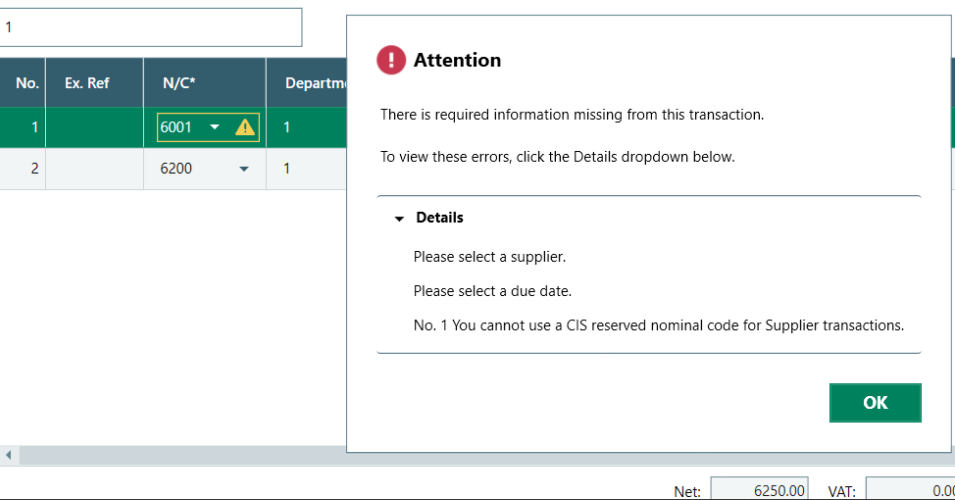
When using AI Document Capture, you can’t use CIS nominal codes, as you’ll receive the following error:
Related Solutions
- Upload files to AI Document Capture
- Email files to AI Document Capture
- Review your AI Document Capture transactions
- Post your AI Document Capture transactions
- AI Document Capture credit entitlement
Bespoke training is available
Get extra support with bespoke one-to-one sessions from a Sage expert, built around your needs.
Leave your details and we'll be in touch.
Leave your details and we'll be in touch.

Solution Properties
- Solution ID
- 241015110609640
- Last Modified Date
- Wed Sep 16 11:36:15 UTC 2026
- Views
- 0