The Purchases list
Summary
Find transactions, see what's outstanding and edit or delete purchase transactions in Sage Accounting.
Description
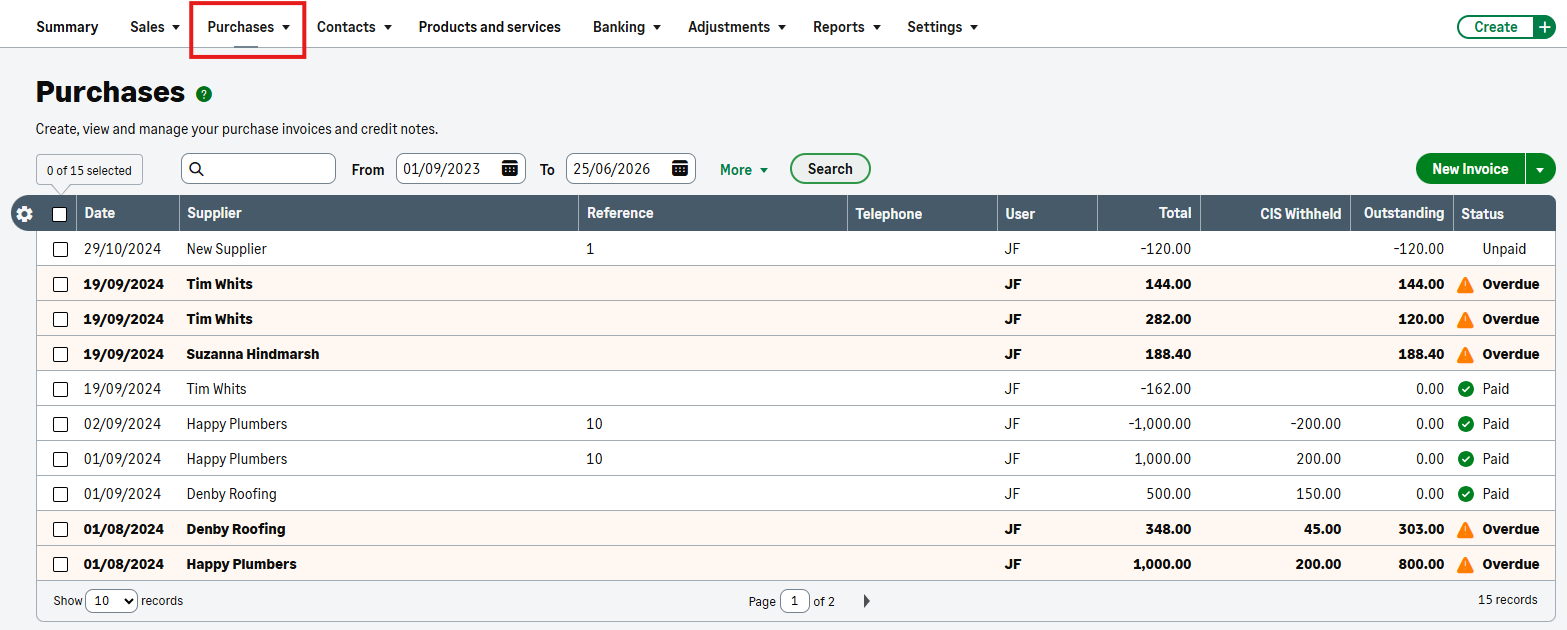
In the purchase list you can:
- Create a purchase invoice or create purchase credit notes
- Select a row to view, edit or pay an invoice or credit note
- Select the checkbox to delete an invoice or credit note
- Use the search box to find transactions by company name, the name of the contact, value or reference
- Use the From and To dates to filter by date
- Select More to filter the list by payment status
Resolution
The Purchases list
Configure columns
You can change the information that appears on the sales list. To do this:
- Click the Configure Columns button
 .
. - Select the checkboxes for the information you want to show on the list.
- Click Save.
The action toolbar
The action toolbar appears when you select the checkbox next to one or more invoices.

From the toolbar, you can do one of the following:
| The sales list opens in a new window or tab and you can print it from your browser menu. | |
| Use this option to email a copy of the invoice as an attachment. For example, to email a customer a copy of all of their outstanding invoices. If you want to do this, make sure you only select the invoices for that particular customer. | |
| CSV | Depending on your Internet browser, the sales list either downloads automatically or you receive a prompt asking you to save the file. |
| Use this option to download a PDF copy of the invoice. Depending on your Internet browser, it downloads automatically or you receive a prompt asking you to save the file. | |
| Copy | Use this option to copy an existing invoice. This is useful if you repeatedly create invoices for the same items and customer. This option only appears when you select a single invoice. |
| Delete | Use this option to delete or void a transaction. To comply with Revenue rules and maintain sequential numbers, we void non-draft invoices rather than delete them. |
Related Solutions
Solution Properties
- Solution ID
- 222001000101094
- Last Modified Date
- Thu Jun 25 14:07:43 UTC 2026
- Views
- 0