

Summary
How to calculate and submit your Making Tax Digital (MTD) VAT Return in Sage 50 Accounts.
Description
If you've registered for MTD, and switched on MTD VAT submissions in your program, you can submit your VAT Return.
Resolution
If you're using the MTD Submissions Module, only follow the first two sections below to calculate your VAT Return for each company in Sage.
Summary of steps
- Calculate and reconcile your VAT Return
- Post the VAT transfer journal
- Submit your VAT return to HRMC
Calculate and reconcile your VAT Return
- If this is your first VAT period under MTD, check your VAT settings.
- On the navigation pane select VAT, then VAT Return.
- To back up your data, press Back up and follow the on-screen prompts.
- Under the Date range, choose your VAT Return period then choose Calculate VAT Return.
If there are any transactions before the date range not on a VAT return already, the Earlier unreconciled transactions window appears. To include these transactions, press Include. If you don't want to include them, choose Ignore. - Check your VAT figures and post any required adjustments.
- Print your VAT Return reports.
- Press Reconcile VAT Return then press Yes.
Post the VAT transfer journal
- Complete the VAT transfer area as follows:
Date Enter the date for the VAT Transfer. Sales Tax Amount This is the amount from Box 1 on the VAT Return. You can amend this if required. Purchase Tax Amount This is the amount from Box 4 minus the amount from Box 2 on the VAT Return. You can amend this if required. - Press Post Journal.
Submit your VAT Return to HMRC
- Be in the Complete VAT Return window. If you've closed this window previously after reconciling the VAT return, to get back to this window double-click on the VAT Return.
- Press Submit online.

- Press Next.
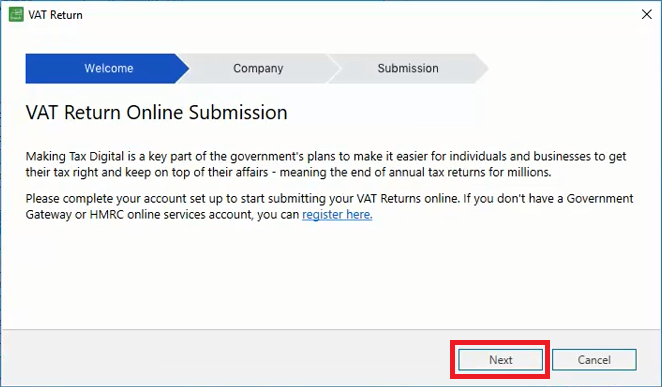
- Check your company name and VAT Registration Number are correct, then select Next.

- In the Gov.uk window, scroll to the bottom and press Continue.

- Enter your Government Gateway ID and password. Press Sign-in.

- Select Continue then select a method to receive your access code.
- Choose Continue and follow the on-screen prompts.
- In Access Code, enter the code you received, then press Continue.
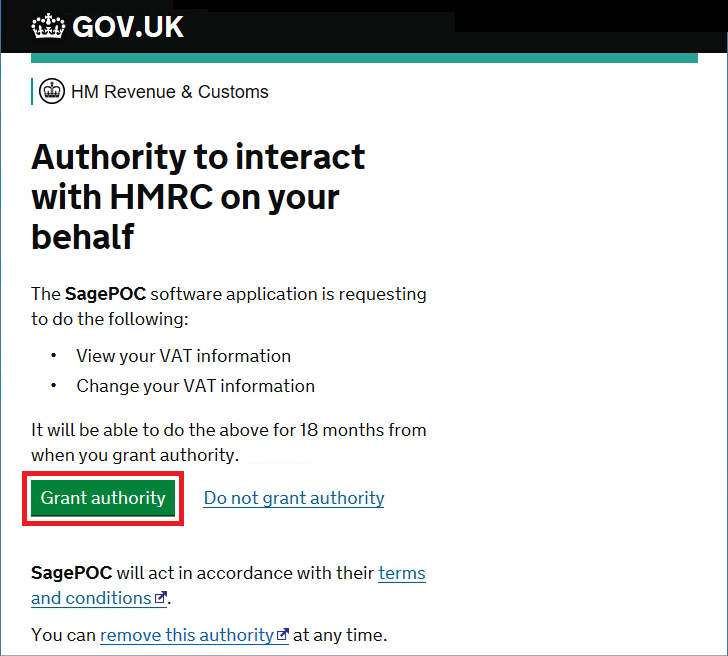
- Select Continue then press Grant Authority.
- Under Submit your period, in the dropdown choose the obligation period you want to submit for.

- Select the confirmation checkbox then press Submit to HMRC.

- When the successful submission window appears, press Close.
Getting a submission error?

- If required, to view a submission confirmation report, select Submission confirmation.
- If required, record your VAT bank payment however you have a payment set up with HMRC, then press Close.
Seeing a submission error?
We have a list of the most common submission errors and how to resolve them.
You can also search for the error message in our Help Centre to find out how to resolve it.
Upgrade your licence
Growing business? Add more companies, users, or employees to your licence with ease. Leave your details and we’ll be in touch.

 Africa
 Asia
Asia Australia
 Canada
 France
 Ireland
 Kenya
Kenya Nigeria
 Portugal
 South Africa
 Spain
Spain United Arab Emirates
 United States
 Germany