

Summary
The data service runs on the computer where your data is held and controls the flow of data and stores your licence information.
Description
With the Sage Data Service Manager v31 and above, you can do the following:
- Stop and restart the data service from any computer on your network
- Clear your licence details held on the server
- Delete the queue.dta file to fix some access issues
Resolution
Skip to:
Identify the computer where your data is held
Identify the name of the computer or the server address of where your data is kept.
Once you've got the data location, continue to the run the Sage Data Service Manager section.
Run the Sage Data Service Manager
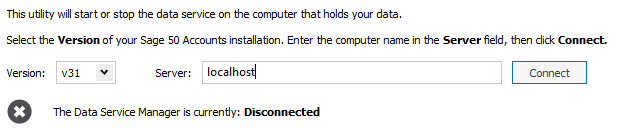
- On your computer, type Data Service Manager in the Search field.
- Select the Sage Data Service Manager for your Sage version, for example v31.
- In the Server: field, enter your data location. If this is a server address, don't include leading slashes. For example, if the address is \\sageserver, enter sageserver.
- Press Connect.
Stop and restart the data service
After connecting to your data location as detailed above:
- Close Sage 50 Accounts if the software is still open.
- Select the Data Service Manager tab then either:
- Press Start Service to start the data service
- Press Stop Service to stop the data service
Clear your licence held in the data service
The data service also stores your licence details so they’re shared across your client computers.
If required, you can clear these details to prevent the server sharing them.
- Select the Data Service Manager tab then either:
- Press Clear Licence to clear your licence details from the data service. This doesn't clear the licence on your client computers, it just clears the details on the data service
- Select the Prevent a licence being copied from server checkbox to stop the licence sharing across your client computers
Clear users
If you're having issues accessing your company data, deleting the Queue.dta file often fixes this.
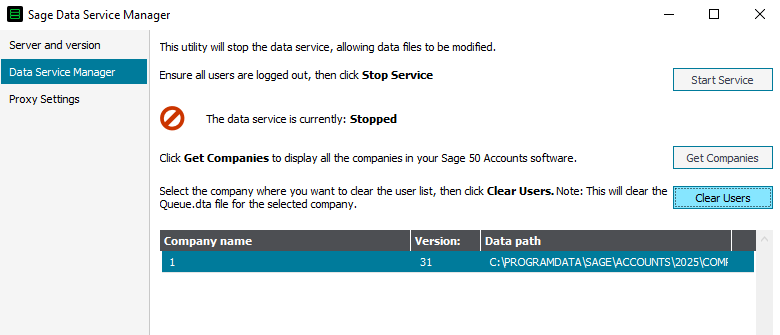
- Select the Data Service Manager tab then press Stop Service.
- Press Get Companies and select the relevant company in the list.
- Press Clear Users.
- On the Queue file deletion prompt, press Yes.
 NOTE: Log all users out of Sage 50 Accounts before you continue.
 - Press OK.
- Press Start Service.
- Open Sage 50 Accounts and log in to your company as usual.
Upgrade your licence
Growing business? Add more companies, users, or employees to your licence with ease. Leave your details and we’ll be in touch.

 Africa
 Asia
Asia Australia
 Canada
 France
 Ireland
 Kenya
Kenya Nigeria
 Portugal
 South Africa
 Spain
Spain United Arab Emirates
 United States
 Germany