Connect a bank account to Salary payments
Description
Cause
Resolution

Initial steps

Connecting to a bank account is slightly different depending on your situation. Identify the heading below that relates to you, then follow the steps.

I want to activate Salary payments and add a bank account at the same time 

  1. Follow the steps for activating Salary payments.
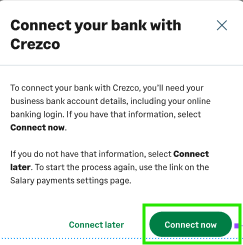
  2. Once activated, select Connect now on the prompt.   
  3. Follow the steps for Connect your bank account.

I previously activated Salary payments but haven't added a bank account yet

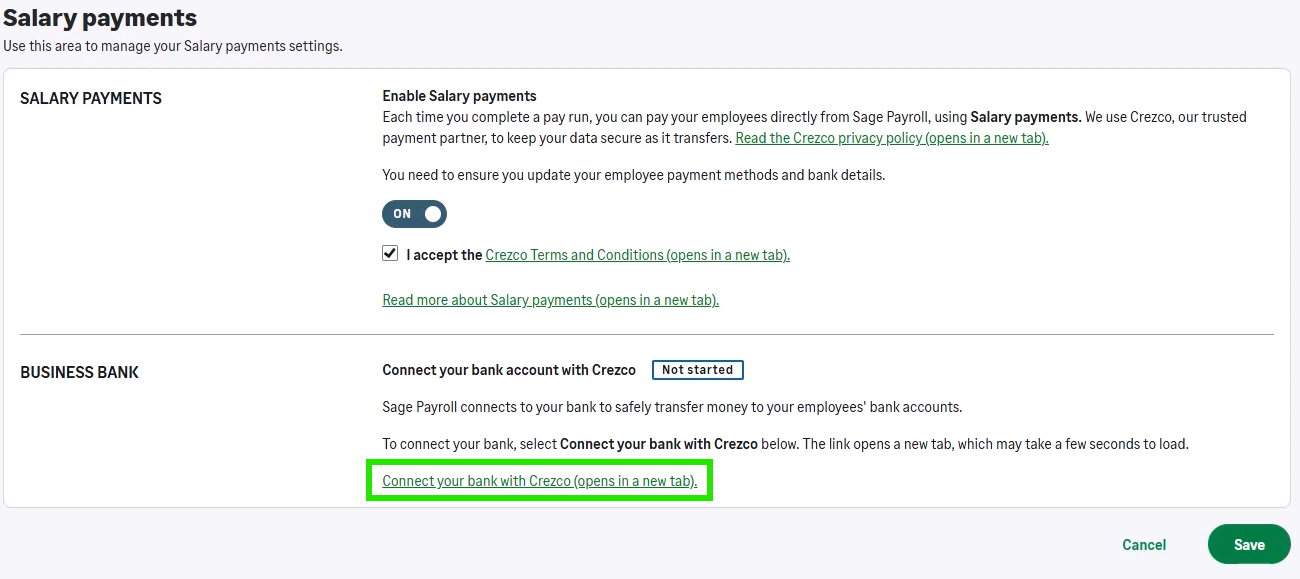
  1. Select Settings from the menu.
  2. Select Salary payments.
  3. Under BUSINESS BANK, select Connect your bank with Crezco.
  4. Follow the steps for Connect your bank account.

Connect your bank account

  1. Choose your bank from the list.
    You can check a list of compatible banks at support.crezco.com/bank-compatibility.
  2. Select a method to connect with.

    NOTE:

    If you don't have the log in credentials necessary to access the bank, select Don't have permission to connect. This will generate a one-time-link that you can email to the person who does have the details. Once they complete the process, it will show as complete in Payroll.
  3. Fill in the required fields. This information is specific to your bank.
  4. Select Continue. 
  5. On the Salary payments settings window, select Save.

Next steps

The final step to complete before you can process with Salary payments is to configure your employee records.

Ensure you do this before you process your pay run. 

Steps to duplicate
Related Solutions

Configure employee records for Salary payments

Processing with Salary payments