CIS opening balances when CIS was previously deducted from invoices
Summary
Resolution
Follow the process outlined here if you have outstanding invoices from your previous system, and you want to include them on CIS reports and returns produced from Sage Accounting. Your CIS reports and returns will not be accurate unless you follow this process.
- This article explains how to enter your opening balances if your previous system deducted CIS from the total value of the invoice, when the invoice was saved. For example, an invoice of £100 labour plus VAT, with a CIS deduction rate of 30%, the outstanding balance will be £90 rather than £120
- This process is used on systems such as Xero and Quickbooks
Things to consider
- To include and report on CIS on outstanding invoices from your previous system, you must re-enter these invoices using the CIS functions and ledger accounts set up in Sage Accounting
-
We may record your CIS in different ledger accounts to the system you have come from, and this will affect the way you enter your opening balances
Before you start
- Make sure you have activated CIS and Set up a contact as a contractor for CIS
- Check your VAT Scheme and Accounts Start Date is correct
- You'll need your final trial balance from your previous system to refer to
About entering opening balances
Enter customer opening balances
Enter the current outstanding balance for each customer contact who is a contractor. You can enter this as a single overall total or enter multiple outstanding balances for the same customer.
For your outstanding CIS invoices, the opening balance will be the total invoice values less the amount of CIS withheld.
 TIP:
- If you have sent CIS and non-CIS invoices to the same contractor, consider entering two opening balances, one for the total non-CIS invoices, and one for the total of CIS invoices. This makes it easier to allocate the credit notes later
- Consider entering each outstanding invoice as a separate opening balance if there aren’t too many. This makes it easier to allocate credit notes later
In our example, we have an outstanding invoice for a contractor where we charged £100 labour with a CIS deduction rate of 30%. The outstanding amount will be for £90. (£100 Labour + £20 VAT less the £30 CIS)
In the example below, we've added an opening balance for a CIS contractor for £90.

How to enter customer opening balances:
- From Settings, select Business Settings, then Opening Balances section.
- Select Customers.
- Select New Opening Balance.
- Enter the details.
- The Total is the opening balance for your customer.
If you're entering more than one opening balance, repeat for each one.
You can easily adjust the opening balances if you make a mistake. Just select the opening balance and make the required changes.
Enter opening balances for nominal ledger accounts
Next enter the balance of your CIS ledger accounts. This is usually taken from the final trial balance used in your old system.
When you activated CIS, we set up the additional CIS ledger accounts of CIS Tax Withheld and CIS Labour for you. We recommend that you use the CIS Tax Withheld ledger account we have created and enter your opening balance against this account.
For your CIS Labour Expense or CIS Materials, you can use the ledger accounts we have set up for you and enter opening balances against these accounts. You can also use your existing ledger accounts, make sure you set them as CIS ledger accounts before you start.
- From Settings, then Business Settings, select Chart of Accounts.
- Find the required ledger account.
- Select Enable CIS on this ledger account.
For CIS, you will have an opening balance for the Trade Debtors, CIS Withheld, VAT, as well as the ledger accounts you used for labour and materials.
- Trade Debtors - this will be updated with the customer opening balances already entered.
- CIS Withheld - enter the total amount of CIS withheld from your outstanding CIS invoices.
- CIS Labour and CIS Materials - enter the total net value for labour and materials from your outstanding CIS invoices.
- The VAT will already be included in the opening balance for your VAT on Sales.
Enter nominal ledger opening balances HERE
- From Settings, then Business Settings, select Nominal Ledger from the Opening Balances section.
- Make sure you have opening balances for:
- CIS Tax Withheld - Debit
- CIS Labour - Credit
- CIS Materials - Credit
- VAT on Sales - Credit
- Save the opening balance.
In our example shown below, as we only have one outstanding CIS invoice, we've added the following opening balances.
| Ledger Account | Debit | Credit |
|---|---|---|
| 1132 CIS Withheld | 30 | |
| 4911 CIS Labour | 100 | |
| 2200 VAT on Sales | 20 |
In our example, the opening balances for our single outstanding balance will have values for the Trade Debtors, CIS Tax Asset Withheld, CIS Labour and VAT.

You can easily adjust the opening balances if you make a mistake. Just open the opening balance and make the required changes to the ledger account or amount.
Reverse your unpaid CIS invoices
To make sure your outstanding CIS invoices are reported correctly on CIS reports and returns, you must re-enter them in Sage Accounting.
Before you can do this, reverse your outstanding balance for each CIS supplier with a credit note.
Make sure that you use the ledger account for CIS Labour Expense, so the CIS is deducted automatically.
- From Sales, select Credit Notes.
- Select a CIS customer with an outstanding balance.
-
Enter the following information:
Date Enter your start date in Accounting. Ledger account Choose the ledger account for CIS Labour.
If you also charged for materials, enter this on a second line using the CIS Materials ledger account.
This is to ensure the CIS is deducted from the credit note and the balance of the ledger accounts is reduced correctly.
Amount Enter the total net value of all outstanding CIS invoices.
In our example, this £100.
VAT If you're on the Standard VAT scheme, select the VAT rate used for the original invoice.
This will be added to your VAT Return but then reversed when you re-create your CIS invoices.
- Save the credit note.
In our example shown below, as we only had one outstanding invoice, we've just entered a single credit note. Here you can see that the CIS has been deducted.
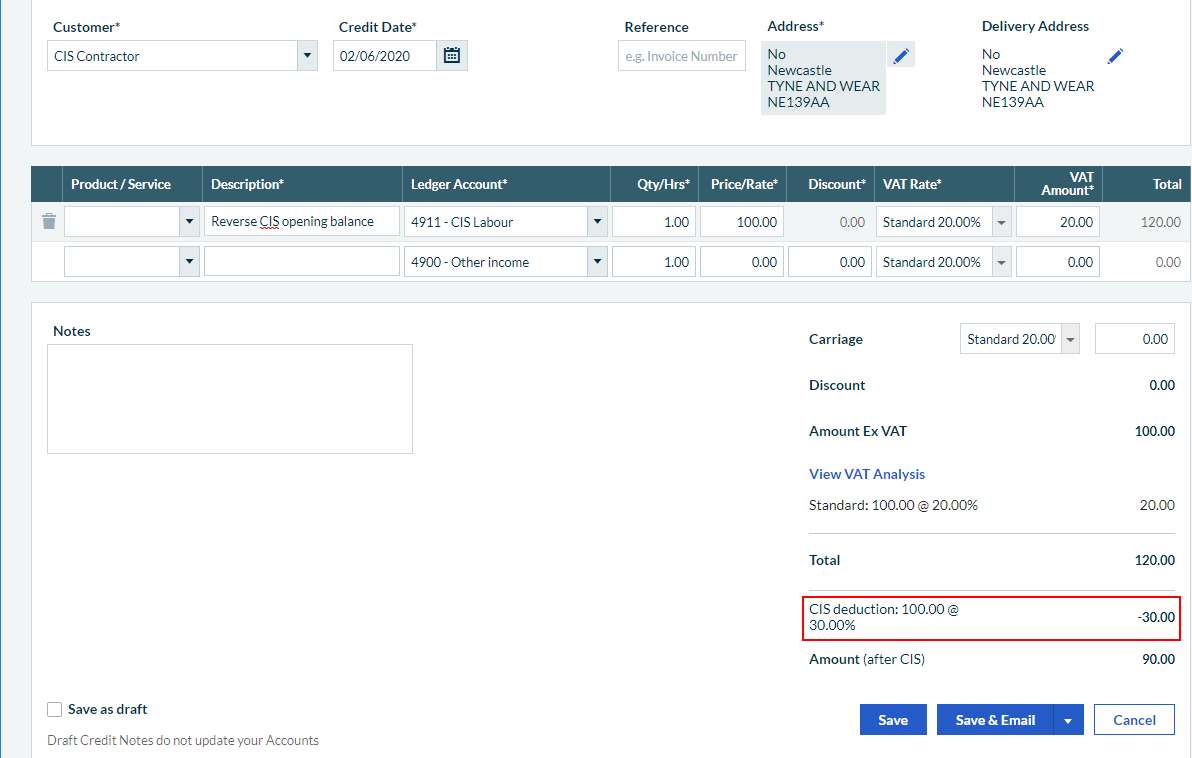
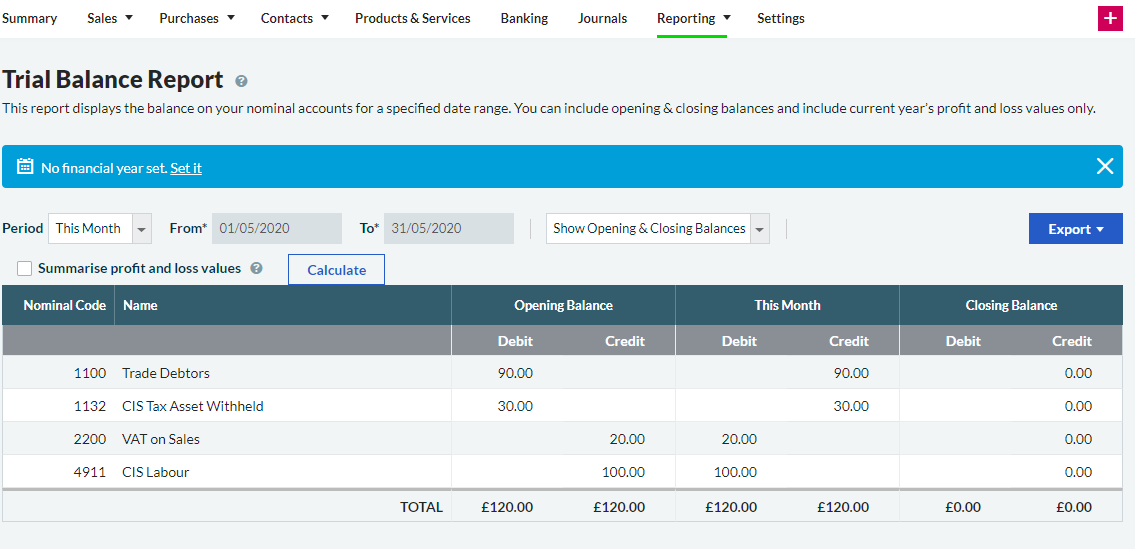
If we check our trial balance, we'll now see our CIS opening balances reversed. In our example, we only entered opening balances for our single CIS invoice, so the trial balance now shows zero.
Allocate the credit note to your opening balance
This is to make sure the credit note is not left outstanding on your customer's account.
- Select Contacts, and select the required contact.
- Select Manage then select Account Allocation.
- Choose the opening balance for your customer.
- Choose the Credit Note and select Save.

Re-enter your CIS invoices
Now that everything has been reversed, just re-enter your outstanding CIS invoices. Enter each outstanding invoice individually as you'll need to know when it's been paid and make sure the CIS is reported correctly.
This will:
- Update your Trade Debtors with the invoice values less the CIS withheld
- Update CIS Tax Withheld with the amount of CIS withheld
- Update CIS Labour with the net value
- Update your VAT on Sales
- From Sales, select Sales Invoices.
- Select the CIS customer with an outstanding balance.
-
Enter the following information:
Date Enter your start date in Accounting. This should be the same date that you used for the credit note. Ledger account Choose the ledger account for CIS Labour.
If you're also charging for materials, enter this on a second line, using the ledger account you used for the credit note.
This is to make sure that CIS is deducted on the invoice and the balance of the correct ledger accounts is updated correctly.
Amount Enter the net value of the outstanding CIS invoice.
In our example, as we only have the one invoice, this is £100.
VAT If you're on the Standard VAT scheme, select the VAT rate used for the original invoice.
This reverses the VAT recorded on the credit note.
- Save the invoice.
In our example shown below, the following ledger accounts have been updated
| Ledger Account | Debit | Credit |
|---|---|---|
| Trade Debtors | 90 | |
| 1132 CIS Withheld | 30 | |
| 4911 CIS Labour | 100 | |
| 2200 VAT on Sales | 20 |
The trial balance will now reflect the value of your outstanding invoices and will be reported on your CIS reports and returns.

Opening balances for CIS on purchases
Enter supplier opening balances
Enter the current outstanding balance for each supplier who is also a sub-contractor. You can enter this as a single overall total or enter multiple outstanding balances for the same supplier.
You'll need to enter the total amount outstanding, but it's only the total of CIS invoices that we're interested in for the rest of the process.
For your outstanding CIS invoices, the opening balance will be the total invoice values less the CIS deducted.
TIP:
- If you have received CIS and non-CIS invoices from the same subcontractor, consider entering two opening balances, one for the total non-CIS invoices, and one for the total of CIS invoices. This makes it easier to allocate the credit notes later
- Consider entering each outstanding invoice as a separate opening balance, if there aren’t too many. This also makes it easier to allocate credit notes later
For example, we have an outstanding invoice for a subcontractor where we've been charged £100 labour with a CIS deduction rate of 30%. The outstanding amount will be for £90 (£100 Labour + £20 VAT less the £30 CIS).
In the example below, we've added an opening balance for a CIS subcontractor for £90.

Enter a supplier opening balance
- From Settings, go to the Opening Balances section.
- Select Suppliers.
- Select New Opening Balance.
- Enter the details.
- The total is the opening balance for your supplier.
If you're entering more than one opening balance, repeat for each one.
Enter nominal ledger opening balances
Next enter the balance of your CIS ledger accounts. This is usually taken from the final trial balance used in your old system.
When you activated CIS, we set up additional CIS ledger accounts CIS Tax Liability and CIS Labour Expense for you.
We recommend that you use the ledger accounts we have created and enter your opening balance against this account.
For your CIS Labour Expense or CIS Materials, you can either:
- Use the CIS Tax Liability ledger account we have created and enter your opening balance against these accounts
- If you want to use your existing ledger accounts, make sure you set them as CIS ledger accounts before you start.
If you want to do this then:
- From Settings, then Business Settings, select Chart of Accounts.
- Find the required Ledger Account.
- Select Enable CIS on this ledger account.
For CIS, you will have an opening balance for the Trade Creditors, CIS Tax Liability, VAT, as well as the ledger accounts you used for CIS Labour Expense and CIS Materials.
- Trade Creditors - this will be updated with the customer opening balances already entered.
- CIS Tax Liability - enter the total amount of CIS deducted from your outstanding CIS invoices.
- CIS Labour Expense and CIS Materials - Enter the total net value from your outstanding CIS invoices.
- VAT on Purchases - This will already be included in the opening balance you've added for your VAT.
Enter nominal ledger opening balances
- From Settings, then Business Settings, select Nominal Ledger from the Opening Balances section.
- Enter an opening balance for the following accounts:
- CIS Tax Liability - Credit.
- CIS Labour Expense - Debit.
- CIS Materials - Debit.
- Save the opening balance.
If you make a mistake, you can change your opening balances at any time.
In our example shown below, as we only have one outstanding CIS invoice, we've added the following opening balances.
| Ledger Account | Debit | Credit |
|---|---|---|
| 1132 CIS Tax Liability | 30 | |
| 4911 CIS Labour Expense | 100 | |
| 2200 VAT on purchases | 20 |

Reverse your unpaid CIS invoices
To make sure your outstanding CIS invoices are reported correctly on CIS reports and returns, you must re-enter them in Sage Accounting.
Before you can do this, reverse your outstanding balance for each CIS supplier with a credit note.
Make sure you use the ledger account for CIS Labour Expense, so the CIS is deducted automatically.
- From Purchases, select Credit Notes.
- Select a CIS supplier with an outstanding balance.
-
Enter the following information:
Date Enter your start date in Accounting. Ledger account Choose ledger account for CIS Labour Expense.
This is to ensure CIS is deducted from the credit note and the balance of the ledger account is reduced correctly.
Amount Enter the total net value for labour of your outstanding CIS invoices.
In our example, this is £100.
VAT If you're on the Standard VAT scheme, select the VAT rate used for the original invoice.
This will be added to your VAT Return but then reversed when you re-create your CIS invoices.
- If you were also charged for materials, enter as a separate line using the CIS Materials ledger account.
- Save the credit note.
In our example shown below, as we only had one outstanding invoice, we've just entered a single credit note. Here you can see that the CIS has been deducted.

If you check your trial balance, you'll now see your CIS opening balances reversed. In our example, we only entered opening balances for our single CIS invoice, so the trial balance now shows zero.

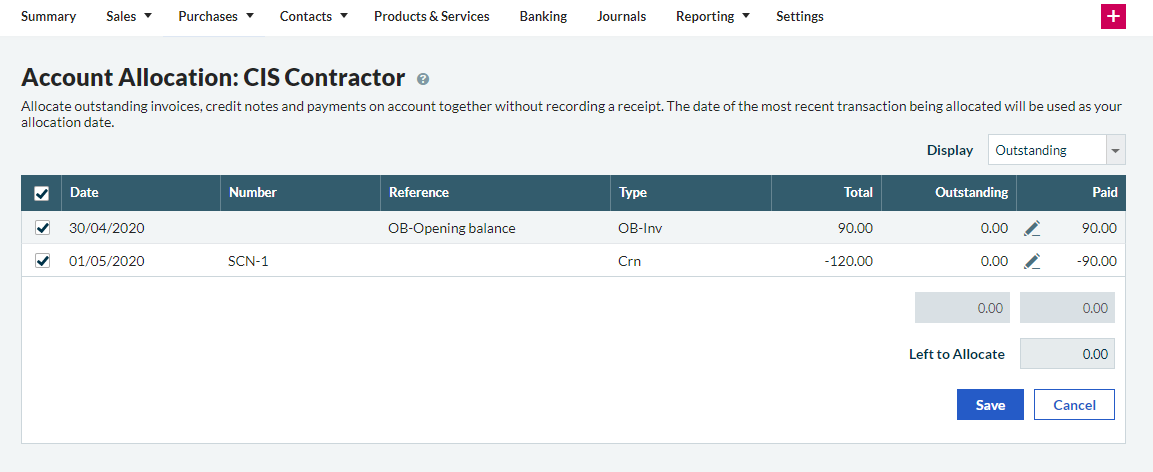
Allocate the credit note to your opening balance
This is to make sure the credit note is not left outstanding on your supplier's account.
- Select Contacts then select the required contact.
- Select Manage then select Account Allocation.
- Choose the opening balance for your supplier.
- Choose the Credit Note and select Save.
Re-enter your CIS invoices
Now that everything has been reversed, just re-enter your outstanding CIS invoices.
Enter each outstanding invoice individually as you'll need to know when it's been paid and make sure the CIS is reported correctly.
This will:
- Update your Trade Debtors with the invoice values less the CIS deducted.
- Update the CIS Tax Liability with the amount of CIS pending.
- Update the CIS Labour Expense with the Net value.
- Update your VAT on purchases.
- From Purchases, select Purchase Invoices.
- Select the CIS supplier with an outstanding balance.
-
Enter the following information:
Date Enter your start date in Accounting. This should be the same date that you used for the credit note. Ledger account Choose the ledger account for CIS Labour Expense.
This is to ensure the CIS is deducted from the invoice and the balance of the correct ledger account is updated.
Amount Enter the net value of the outstanding CIS invoice.
In our example, as we only have one invoice, this is £100.
VAT If you're on the Standard VAT scheme, select the VAT rate used for the original invoice.
This reverses the VAT recorded on the credit note.
- Save the invoice.
In our example shown below, the following ledger accounts have been updated.
| Ledger Account | Debit | Credit |
|---|---|---|
| Trade Creditors | 90 | |
| 1132 CIS Tax Liability | 30 | |
| 4911 CIS Labour Expense | 100 | |
| 2200 VAT on Purchases | 20 |
The trial balance will now reflect the value of your outstanding invoices and will be reported on your CIS report and returns.

Related Solutions
Solution Properties
- Solution ID
- 222001000101298
- Last Modified Date
- Thu Aug 13 14:01:31 UTC 2026
- Views
- 0