Sage 50 Accounts to Sage Accounting preparation
Summary
Resolution
Back up and check data
 NOTE: Only UK companies and base currency of sterling can be migrated.
- Pick the date you want to start using Sage Business Cloud Accounting.
- Continue to enter transactions in Sage 50 Accounts up until your chosen switching date.
- Ensure you have a bank statement from your switching date.
- Take a data files only Back up and Check Data.
Any errors warnings or comments need to be resolved before Migration.
Information you need to know
- In Sage 50 Accounts go to Help and About.
- Under Program Details, make note of your,
Version number NOTE: The data has to be on v24.2 and above to migrate to Sage Business Cloud Accounting. - Under Configuration Information, make note of your:
Financial Year VAT Scheme - E.g. Standard VAT Under Features Enabled, make note if the following features have been activated:
CIS
You'll need to set up CIS once you've migrated, therefore you need to migrate at the end of a CIS period.Foreign Trader
You can't migrate your data if you use Foreign Trader, however you can migrate with opening balances.Making Tax Digtial
This will need reactivated once you've migrated.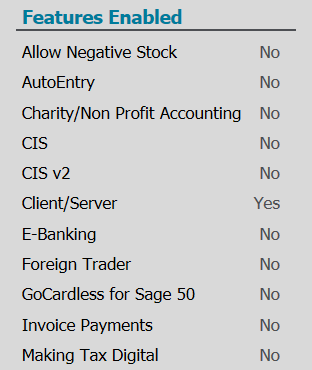
- Under Data Information, make note of the following values:
Number of Sales Orders
Sales orders are not migrated to Sage Business CloudNumber of Fixed Asset Records
Fixed Assets are not migrated to Sage Business Cloud as it's not a feaureNumber of Purchase Orders
Purchase orders are not migrated to Sage Business CloudNumber of Project Records
Projects will beed to be entered manually as Analysis Types in Sage Businss CloudNumber of Product Records
You will need to either import or manually recreate product records in Sage Business Cloud Accounting
Closing down Sage 50 Accounts
Invoices and credits
Only posted invoices will be migrated to Sage Business Cloud Accounting meaning you need to make sure all invoices are updated to the ledgers.
Nominal codes
Sage Business Cloud Accounting only has one chart of accounts meaning you need to make sure you have the correct chart of accounts set as default in Sage 50 Accounts.
To make sure the migration runs smoothly you also need to check your chart of accounts.
VAT
Make sure all VAT returns are up to date where possible.
When data is migrated the VAT returns will be rebuilt on the date of each transaction for the relevant period. Later entries or manual adjustments may cause the figures to show differently in Sage business cloud compared to Sage 50 Accounting.
NOTE: If reconciled VAT returns have been duplicated for the same dates this would restrict how much data can be migrated.
Next Steps
If you have a confirmed booking time and date for your migration via email, please follow these steps Migration Guide to upload your data in preparation for the appointment.
NOTE: We politely request the data is uploaded at least 3 hours before the appointment time, if this deadline is missed then the migration appointment is likely to be cancelled, and you will need to be booked in again.
If you do not have an appointment with the AD Migration Team, please reach out to your Practice Success Manager who can then organise an initial consultation call with a member of the team to discuss further.
Solution Properties
- Solution ID
- 210518101521563
- Last Modified Date
- Fri Jun 16 14:38:04 UTC 2023
- Views
- 0