How to add a new company or connect to an existing one
Summary
Description
There are several ways you can create a new company:
- Create a new blank database, ready to set up
- Restore a backup
- Connecting to existing company data on your computer or a network
To check your current software licence, click Help, then click About. Under Licence Information, check the number next to Max companies allowed.
Resolution
Watch the video
Before you start
If you don't already have a company set up, open Sage 50 Payroll and enter your licence details, then select Next. Then, follow the relevant section below.
Company data location
Sometimes the company data you need to add is on a different computer or on a server. In this case, check that your Windows username has at least Modify access to the data folder.
For assistance with modifying permissions in Windows, contact your local IT support. Once you've confirmed you have access, check you're using the same version of Sage 50 Payroll that last logged into this company data.
After you complete these checks, skip ahead to the connect to an existing company section.
Set up a new company
- Open Sage 50 Payroll and log into your current company.
- Click File, then New Company.
- Select Create a new set of data files, then Next.
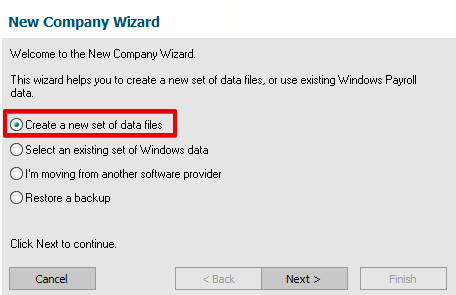
- Enter the following details:
- Company Name
- Address
- Post Code
- Tax Dist./Ref - this is your Employer PAYE reference
- Accounts Office Ref
- Click Next.
- Enter a password for the manager username, then confirm it. You'll need to enter this each time you log on with the manager username.
- Enter a security question and the answer, then select Next.
- If you've registered with HMRC for online submissions, enter the User ID, Password and Contact Details, then click Next.
- Click Finish. A progress bar appears while you're setting your company up.
- Enter your current Process Date then select OK.
- To close the list of default reminders, select Mark as Complete.
You can now enter your set up your company and payroll details. Add an existing employee and add a new employee using the Employee Wizard.
If required, you can relocate your data to a different location on your computer, or onto a shared drive such as a server.
Set up a new company and restore a backup
- Open Sage 50 Payroll and log into your current company.
- Click File, then New Company.
- Select Restore a backup, then Next.
- Click Browse and locate and double-click the relevant backup file.
- Select Next, then Finish.
- Once you restore the backup, enter your user name and password.
- Ensure you're using the correct processing date, then select OK.
Connect to a company already set up on your computer or network
- Open Sage 50 Payroll and log into your current company.
- Select File, then New Company.
- Click Select an existing set of Windows data.
- Select Next and enter the path or browse to the required Payroll.mdb file.
- Click Next and check the details are correct.
- Select Finish.
Change from another software provider
- Open Sage 50 Payroll and log into your current company.
If you haven't yet created a company, go to step 3. - Click File, then New Company.
- Select I'm moving from another software provider, then Next.
- Enter your company details, then select Next.
- Enter a password for the manager username, then confirm it.
You'll need to enter this each time you log on with the manager username. - Enter a security question and the answer, then select Next.
- If you've registered with HMRC for online submissions, enter your details, then click Next.
- Click Finish and enter the processing date, then select OK.
- To close the list of default reminders, select Mark as Complete.
The Set up your company and payroll details article appears and provides help with switching to Sage 50 Payroll.
Upgrade your licence
Growing business? Add more companies, users, or employees to your licence with ease. Leave your details and we’ll be in touch.

Solution Properties
- Solution ID
- 200427112604739
- Last Modified Date
- Wed Sep 30 10:56:27 UTC 2026
- Attributes
- Product Details
- Views
- 0