Sage 200 Report Designer - Expression Snippets Manager
Summary
Description
The Expression Editor in Sage Report Designer contains a Snippets Manager feature, which you can use to save common expressions and calculations to use in future expressions and filters.
Advanced conditional formatting can also be saved as snippets in the same way as filters.
 NOTE: This article has been prepared and issued to you as a goodwill gesture only and Sage accepts no liability or responsibility for its use. For further support please refer to your Business Partner.
Resolution
These are the basic steps that explain how to use the Snippets Manager. They include:
- To create a snippet using the Expression Snippets Manager
- To save a snippet from an existing expression
- To use a saved snippet in an expression or filter
- To add a saved Expression Snippet to a report
- To modify a saved snippet
- To delete a saved snippet
- To save the changes to your document
NOTE: Quick steps provide the minimum amount of information you need. For further information, please refer to the Detailed steps tab.
This article assumes that you have located the report or layout that you want to amend and opened it in Sage Report Designer.
To create a snippet using the Expression Snippets Manager
- Tools > Expression Snippets Manager > select required snippet group > click Add.
- Complete the Name, Description and Author boxes as required > click Build > create your filter or expression > OK > OK > OK.
For further information about the options within the Expression Editor window, please refer to the Detailed steps tab.
To save a snippet from an existing expression
- Create your filter or expression or open an existing expression or filter > Expression Editor window > click Save As Snippet. NOTE: When creating a filter, if the Modify Filter window appears, to open the Expression Editor window click Use Advanced Filter.
- Group to save into box > select the group into which you want to save your snippet, or to create a new group click Add and enter the name of your new group.
- Complete the Name, Description and Author boxes as required > OK > if required, continue entering your expression or filter > OK.
To use a saved snippet in an expression or filter
Begin creating your expression or filter > Expression Editor window > Functions pane > double-click the Snippets folder > to expand the group containing your snippet click the plus sign to the left of the folder.
- Double-click the required snippet > complete your expression > OK.
To add a saved Expression Snippet to a report
- Variables pane > double-click the Snippets folder > double-click the group containing your snippet > select the required snippet > click and drag the snippet onto the report.
To modify a saved snippet
- Tools > Expression Snippets Manager > double-click the group containing your snippet > select your snippet > Modify.
- Amend the Name, Description and Author boxes as required > if required, to amend the expression click Build, then amend the expression > OK > OK > OK.
To delete a saved snippet
- Tools > Expression Snippets Manager > double-click the group containing your snippet > select your snippet > Remove > Yes > OK.
To save the changes to your document
- Report menu > Report Properties > enter a new name and description for the report > OK.
Report Designer v1.3 and below - Report Explorer pane > select the report name > Properties pane > Name > enter a new name for the report > Enter. TIP: You can check your Report Designer version in Help > About > Application > File Version.
 - File > Save As > File name > enter a new file name for the document > browse to the required location for your document > Save.
- File > Exit.
The following detailed steps contain everything you need to help you use the Snippets Manager.
This article assumes that you have located the report or layout that you want to amend and opened it in Sage Report Designer.
NOTE: If any of the panes mentioned in this section are not visible, open the View menu and select the required pane. If the pane doesn't appear, you can reset the Report Designer view to its default. For further information about this, please refer to the following article.
The Expression Snippets window
You can access the Expression Snippets window from the Tools menu or, when creating a filter or expression, from within the Expression Editor window.
- If you access the Expression Snippets window through the Tools menu, the following options appear:

Groups Using groups you can store your snippets in separate folders, making them easier to find. For example, you may want to have a series of snippets to filter your customer reports, stored in a folder called Customer Snippets.
Tip: The default group is MySnippets.Description The description of your snippet. Author The name of the person who created the snippet. Expression The expression or filter you created appears here. This box cannot be edited, for information about modifying a snippet please refer to the section To modify a saved snippet. Add Group Use this option to add a new group to store your snippets. Add Use this option to create a new Snippet. For information about creating a snippet please refer to the section To create a snippet using the Expression Snippets Manager. Remove Use this option to remove an existing snippet group. This option removes the group and all snippets it contains. You can also use this option to remove a snippet. For information about removing a snippet please refer to the section To delete a saved snippet. Modify Use this option to change a saved snippet. For information about modifying a snippet please refer to the section To modify a saved snippet. - If you access the Expression Snippets window through the Save As Snippet option in the Expression Editor, the following options appear:
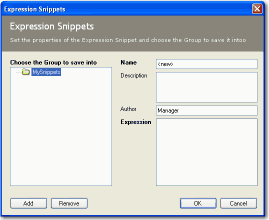
Choose the Group to save in Using Groups you can store your snippets in separate folders, making them easier to find. For example, you may want to have a series of snippets to filter your customer reports, stored in a folder called Customer Snippets. Name You must enter a name for the snippet before it can be saved. The name appears in the Functions pane when you select a snippet. Description (optional) You can enter a description giving more information about your snippet. This description appears in the Expression Snippets Manager window. Author - (optional) You can enter the name of the author of the snippet. By default, the name shown here is the user currently logged on to Windows. Expression The expression or filter you created appears here. This box cannot be edited, if you want to change the expression or filter you should close the Snippets Manager window and return to the Expression Editor. Add You can use this option to add a new group in which to save your snippets. Remove You can use this option to remove an existing group folder and all the snippets it contains.
To create a snippet using the Expression Snippets Manager
- Open the Tools menu, then choose Expression Snippets Manager.
- To add a new snippet, select required group then click Add. TIP: The default group is MySnippets.
- Complete the Name, Description and Author boxes as required then to create the expression or calculation for your snippet, click Build. NOTE: For further information about the options within the Expression Editor window, please refer to the previous section.
- Create your filter or expression.
For further information about creating filters please refer to article or for information about how to create an expression, please refer to article . - To close the Expression Editor window and accept your expression, click OK.
- To accept the snippet, click OK.
- To save the snippet and close the Expression Snippets window, click OK.
You have now saved your snippet. The new snippet is available the next time you open the Expression Editor window. If required, make any change to the document, then save your changes. For further information about how to save the amended document, please refer to the section To save the changes to your document later in this article.
To save a snippet from an existing expression
- Create your filter or expression. TIP: Alternatively, if the filter or expression you want to save as a snippet already exists on the report, you can open it within the Expression Editor. For example, double-click the required expression on the report design, or to display any existing filters, open the data menu and choose Filter.
For further information about creating filters please refer to article or for information about how to create an expression, please refer to article . NOTE: When creating a filter, if the Modify Filter window appears, to open the Expression Editor window click Use Advanced Filter. - From the Expression Editor window, click Save As Snippet.
- From the Choose the Group to save into box, select the group into which you want to save your snippet. Alternatively, to create a new group click Add and enter the name of your new group.
- Complete the Name, Description and Author boxes as required. For information about these areas, please refer to the section The Expression Snippets Window.
- To accept your snippet, click OK, or to exit without accepting the snippet click Close.
- If required, continue entering your expression or filter. Once the expression or filter is complete, to exit the Expression Editor and save the snippet click OK. To exit without saving, click Cancel.
You have now saved your snippet. The new snippet is available the next time you open the Expression Editor window. If you have applied a new filter or expression, or made any other changes to the document, you must save your changes to the document. For further information about how to save the amended document, please refer to the section To save the changes to your document later in this article.
To use a saved snippet in an expression or filter
To open the Expression Editor window, begin to create your expression or filter. For example, to create a filter open the Data menu and choose Filter or to create an expression, in the Toolbox pane, click Expression then click on the report design where you want the expression to appears.
For further information about creating filters please refer to article or for information about how to create an expression, please refer to article .- If required, create the first part of your expression or filter, then to use the saved snippet, from the Functions pane select the Snippets folder then to view the groups, click the plus sign to the left of the folder, or double-click the Snippets folder.
- To open the group containing your snippet, click the plus sign to the left of the group folder.
- Select the required snippet, then hold down the left mouse button and drag the mouse into the left-hand pane. Place the mouse pointer in the position where you want to add the snippet, then to add the snippet release the mouse button.
- If required, continue entering your expression or filter. Once the expression or filter is complete, to exit the Expression Editor click OK.
You have now used a snippet within an expression or filter and should make any further changes you require to the document and save your changes. For further information about how to save the amended document, please refer to the section To save the changes to your document later in this article.
To add a saved expression snippet to a report
- From the Variables pane, select the Snippets folder, then to open the Snippets folder and view the groups, click the plus sign to the left of the folder, or double-click the Snippets folder.
- To open the group containing your snippet, click the plus sign to the left of the group folder, or double-click the group.
- Select the required snippet, then hold down the left mouse button and drag the snippet onto the report. Place the mouse pointer in the position where you want to add the expression snippet, then to add the expression snippet release the mouse button.
You have now added a saved snippet to a report and should make any further changes to your document then save your changes. For further information about how to save the amended document, please refer to the section To save the changes to your document later in this article.
To modify a saved snippet
- Open the Tools menu, then choose Expression Snippets Manager.
- To view your snippet, click the plus sign to the left of the group containing your snippet, or double-click the group folder.
- Select your snippet, then to amend it click Modify.
- Amend the Name, Description and Author boxes as required. For information about these boxes, please refer to the section The Expression Snippets window.
- If required, to amend the expression click Build, then amend the expression.
For further information about creating filters please refer to article or for information about how to create an expression, please refer to article . - To close the Expression Editor window and accept your changes, click OK or to exit without accepting the changes, click Cancel.
- To close the Modify Expression Snippet window and accept the changes to the snippet, click OK or to exit without accepting the changes, click Cancel.
- To close the Expression Snippets window and save the changes to the snippet, click OK. To exit without saving, click Cancel.
You have now modified a saved snippet and should make any changes you require to the report and save your changes. For further information about how to save the amended document, please refer to the section To save the changes to your document later in this article.
To delete a saved snippet
- Open the Tools menu, then choose Expression Snippets Manager.
- To view your saved snippets, click the plus sign to the left of the group containing your snippet, or double-click the group folder.
- Select your snippet, then to delete it click Remove.
The message 'Are you sure you wish to delete the Expression Snippet (Snippet Name)?' appears. - To delete your snippet, click Yes or to cancel the deletion, click No.
- To close the Expression Snippets window and save the changes, click OK. To exit without saving click Cancel.
You have now deleted your saved snippet and should make any changes you require to the report and save your changes. For further information about how to save the amended document, please refer to the next section.
To save the changes to your document
NOTE: If you have not made any changes to the edited document, and have only created, amended or deleted a snippet, without affecting an expression or filter on the report or layout, you do not need to save the document. To close Sage Report Designer, open the File menu, and choose Exit.
- To save your changes, you must change the name and description of your document. To do this, open the Report menu, choose Report Properties, enter a new name and description for the document then click OK.
Report Designer v1.3 and below - To save your changes, you must change the name of your document. To do this, from the Report Explorer pane, select the document name. From the Properties pane, in the Name box, enter your preferred description for the document then press Enter. - To save the changes, open the File menu and choose Save As. From the Save As window, in the File name box, enter a file name for your amended document. If required, browse to the required location for your document then click Save.
For further information about where to save your document, please refer to article . - To close Sage Report Designer, open the File menu and choose Exit.
You have now saved your amended document.
TIP: If you have any difficulty finding a recently saved document, you can open it from the Report Designer Recent files list and save it to the required location. To open a recently viewed report, from the Sage Accounts desktop open the Tools menu, choose Report Designer then from the Recent files list, click your required report.
NOTE: If you are viewing this article from the Sage website, a list of Sage 200 Report Designer articles are now available.
Sage Business Partners can now log new cases online!
If you're unable to find the help you require from our online resources, log a new case with us without having to use phone or email. Simply select 'Manage your cases' from the dashboard or visit my.sage.co.uk/cases.
Sage 200 Services
Did you know Sage 200 customers now have access to a range of services direct with Sage. These include a bespoke Report Design Service, a library of How to Webinars and Ideas Portal just to name a few. Explore your potential using Sage 200 Services.
Solution Properties
- Solution ID
- 200427112338542
- Last Modified Date
- Fri Nov 24 13:07:01 UTC 2023
- Attributes
-
Product DetailsModules: Report Writer
- Views
- 0