

Summary
How to email your invoices, statements, letters, reports and more from Sage 50 Accounts.
Description
Save time and money by sending reports, layouts and letters by email.
Resolution
Before you start
First, you must set up your email settings depending on the email service you use.
- In Sage 50 Accounts, go to Settings then select Email Defaults.
- Check which provider is in the Email Program dropdown:
| Microsoft Outlook |
|
| Webmail | You can use providers such as Gmail, Yahoo and Microsoft 365 to email your documents. As these are cloud-based services, you need to configure your SMTP settings. |
Email a layout or letter
- To email letters or layouts, such as invoices or statements, locate and select the layout to email, then select Email.
▼ Using Microsoft Outlook? Watch a video showing how to email invoices  TIP: This video is part of the free Sage University course - Invoices and Credits. To sign up for the full course, or see other free Sage University training courses, click here >
Watch a video
TIP: This video is part of the free Sage University course - Invoices and Credits. To sign up for the full course, or see other free Sage University training courses, click here >▼ Using Webmail? Watch a video showing how to email invoices TIP: This video is part of a free Sage University course. To sign up for this, or see other free Sage University training courses.
Watch a video
TIP: This video is part of a free Sage University course. To sign up for this, or see other free Sage University training courses.Email a report
- In the relevant module, select Reports.
- Locate and select the report to email, then select Email.
- If a Criteria window appears, enter any relevant information, then press OK.
- If you've configured your email settings in the before you start section, the software sends the document to your Inbox or Drafts folder
- If you haven't configured your email settings, proceed to step 4
- When prompted to send the document as an attachment, press Yes.
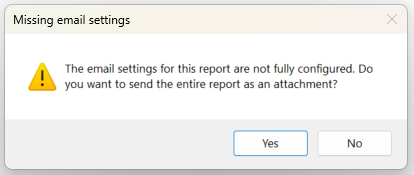
The Send as Attachment window appears.
- In the Provider dropdown, select your email provider.
- In the Format dropdown, select the required document format.
- Press OK.
The Output to E-mail window appears.
- Press OK.
- Open your email provider and enter the recipient's email address.
- Send the email.
Bespoke training is available
Get extra support with bespoke one-to-one sessions from a Sage expert, built around your needs.
Leave your details and we'll be in touch.
Leave your details and we'll be in touch.

 Africa
 Asia
Asia Australia
 Canada
 France
 Ireland
 Kenya
Kenya Nigeria
 Portugal
 South Africa
 Spain
Spain United Arab Emirates
 United States
 Germany