

Summary
How to prepare and send your quarterly submission for Making Tax Digital (MTD) for Income Tax in Sage 50 Accounts v33.1 and above.
Description
Prepare and send your quarterly MTD for Income Tax submission at any time within your obligation period. This helps you keep your HMRC tax records up to date all year.
Resolution
Check and submit your quarterly submission
- Log in to Sage 50 Accounts as Manager or a user with full access to the Nominal codes module.
- Go to Nominal codes then Submit quarterly update.
You'll then see the Submit quarterly update window.
Select an option below for an example of each method:
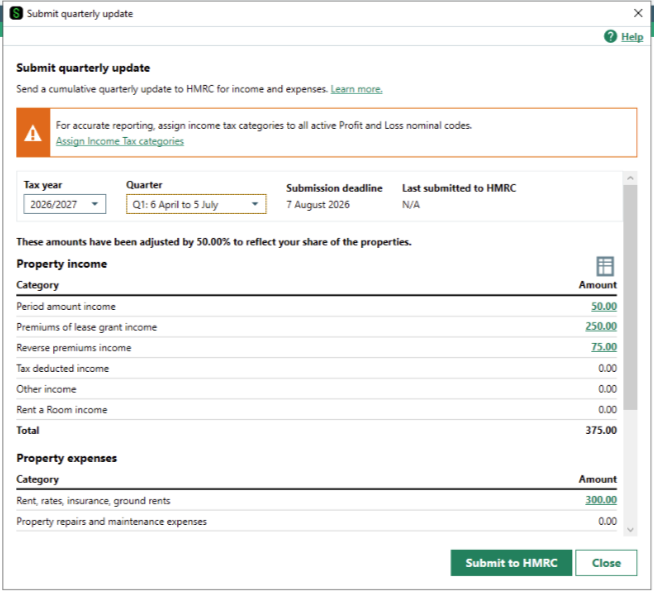
- Select your Tax year. This populates from HMRC when you set up MTD for Income Tax and enter your business details.
- Select the relevant period in the Quarter dropdown field. These populate from HMRC obligation periods for each quarter.
- Select the figures in the Total column for each Category in Business income and Business Expenses. These are the categories you assigned when you set up MTD for Income Tax.
This opens a new window that displays each Nominal code and the value in the Amount column.
 .
- Select the figure in the Amount column to view individual transactions that make up the value of the Nominal code.
The software includes all transaction types posted to Profit and Loss codes other than Ledger Year End journals.
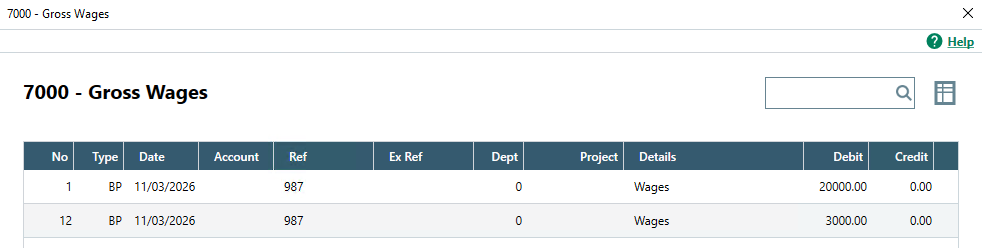
- Check your figures then press Close on the two windows.
- Press Submit to HMRC on the Submit quarterly update window.
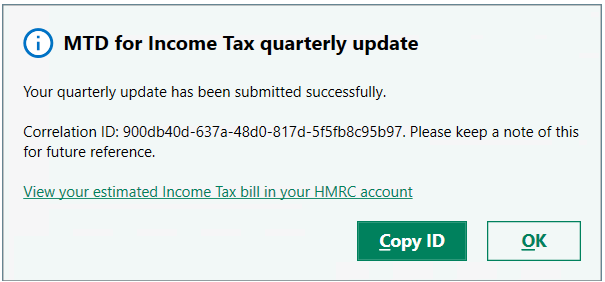
A window appears to advise that the software has submitted the update. This shows your Correlation ID.
- Press Copy ID and keep this safe.
- Select the View your estimated Income Tax bill in your HMRC account to see the details in GOV.UK.
- Press OK to close the window.
View your submissions
See our View your submitted Making Tax Digital for Income Tax quarterly updates article for more information.
Bespoke training is available
Get extra support with bespoke one-to-one sessions from a Sage expert, built around your needs.
Leave your details and we'll be in touch.
Leave your details and we'll be in touch.

 Africa
 Asia
 Australia
 Canada
 France
 Ireland
 Kenya
 Nigeria
 Portugal
 South Africa
 Spain
 United Arab Emirates
 United States
 Germany