| | INTERNAL: Edit or delete transactions |
| Description | This wizard is designed to guide you through the process of editing or deleting transactions in Sage Accounting.  NOTE: Before you start check to make sure you don't have a lockdown date set. How to remove a lockdown date here. NOTE: Before you start check to make sure you don't have a lockdown date set. How to remove a lockdown date here.
|
| Resolution | Click an option below to get started. What type of transaction would you like to edit or delete?
Do you want to edit or delete a Sales Invoice or a Quick Entry Sales Invoice?
Do you want to edit or delete a Sales Credit Note or a Quick Entry Sales Credit Note?
Do you want to edit or delete a Quote or an Estimate? What type of transaction would you like to edit or delete?
Do you want to edit or delete a Purchase Invoice or a Quick Entry Purchase Invoice?
Do you want to edit or delete a Purchase Credit Note or a Quick Entry Purchase Credit Note? What type of transaction would you like to edit or delete? Thank you for using our corrections wizard, if this has helped please let us know using the feedback options below.
Edit or delete a Sales Invoice If you need to edit or delete a sales invoice in Sage Accounting, the steps vary based on different factors like if the invoice is VAT reconciled or paid. We've created a wizard to guide you through the process step by step. To get started, click the button below.
We first need to check if your invoice is Paid, Part Paid, Unpaid or VAT reconciled To check this, go to Sales, Sales Invoices, then click on the transaction. Is the edit or void button greyed out? Select Edit or Void. A window will appear with the reason the transaction can't be edited or voided. What's the reason shown? If the invoice is included on a submitted VAT Return you can't edit or void the invoice. Instead, you must reverse the invoice with a credit note which will cancel out the impact. However, if the invoice is included on a draft VAT Return, you can delete the draft return then edit or void the invoice. To reverse an invoice: - Make a note of the date, amount and ledger account used on the invoice.
- From within the invoice, select Add credit note.
- Complete the credit note using the same date, amount and ledger as the invoice. TIP: if you can't find the ledger account you used for the invoice you will need to change the visibility of the ledger. You can do this by heading into Settings, then Chart of Accounts, select the relevant ledger account, within visibility select Sales (add screenshot here)
- Select Save.
Now that you've reversed the invoice using a credit note, you can create a new invoice if required. If the invoice has been paid, you must unallocate the payment from the invoice before you can make changes. This will temporarily leave the payment as a payment on account. We will reallocate this payment later. - From within the invoice, go to the top right underneath Amount Paid.
- Select the 1 payment option in green.
- Select the Amount.
- Untick the invoice.
- Select Save.
- Select Yes, to save as a payment on account.
Would you like to edit or delete the invoice? - From within the invoice, select Edit.
- Edit the required information.
- Select Save.
Now that you've amended your invoice, you can reallocate the payment on account to your invoice. Would you like to reallocate the payment to the invoice? - Go to Contacts, then Customers.
- Select the relevant customer.
- Go to Manage, then Account Allocation.
- Select the check box next to the invoice, and the receipt.
- Check that left to allocate is 0.00.
- Select Save.
For audit purposes, you can't delete the invoice entirely, instead you must void the invoice. This also means you won't be able to reuse the same invoice number. - Go to Sales, then Sales Invoices.
- Find the relevant Sales Invoice and select it.
- Select Void.
- Enter a reason, for example: "invoice raised in error" then select Void.
You can now create a new invoice if required. If the invoice has been paid, you must unallocate the payment from the invoice before you can make changes. This will temporarily leave the payment as a payment on account. We will reallocate this payment later. - From within the invoice, go to the top right underneath Amount Paid.
- Select the 1 payment option in green.
- Select the Amount.
- Untick the invoice.
- Select Save.
- Select Yes, to save as a payment on account.
Next we need to deal with the VAT reconciliation status If the invoice is included on a submitted VAT Return you can't edit or void the invoice. Instead, you must reverse the invoice with a credit note which will cancel out the impact. However, if the invoice is included on a draft VAT Return, you can delete the draft return then edit or void the invoice. To reverse an invoice: - Make a note of the date, amount and ledger account used on the invoice.
- From within the invoice, select Add credit note.
- Complete the credit note using the same date, amount and ledger as the invoice. TIP: if you can't find the ledger account you used for the invoice you will need to change the visibility of the ledger. You can do this by heading into Settings, then Chart of Accounts, select the relevant ledger account, within visibility select Sales (add screenshot here)
- Select Save.
Now that you've reversed the invoice using a credit note, you can create a new invoice if required. You can reallocate the payment on account to your new invoice. Would you like to reallocate the payment to the invoice? - Go to Contacts, then Customers.
- Select the relevant customer.
- Go to Manage, then Account Allocation.
- Select the check box next to the invoice, and the receipt.
- Check that left to allocate is 0.00.
- Select Save.
Do you want to edit or delete the invoice? - From within the invoice, select Edit.
- Edit the required information.
- Select Save.
For audit purposes, you can't delete the invoice entirely, instead you must void the invoice. This also means you won't be able to reuse the same invoice number. - Go to Sales, then Sales Invoices.
- Find the relevant Sales Invoice and select it.
- Select Void.
- Enter a reason, for example: "invoice raised in error" then select Void.
You can now create a new invoice if required. Edit or delete a Quick entry purchase invoice If you need to edit or delete a Quick entry purchase invoice in Sage Accounting, the steps vary based on different factors like if the invoice is VAT reconciled or paid. We've created a wizard to guide you through the process step by step. To get started, click the button below.
We first need to check if your invoice is Paid, Part Paid, Unpaid or VAT reconciled To check this, go to purchase, Quick entries, then click on the transaction. Is the row greyed out? This means that the quick entry either has a payment made against it, or it's VAT reconciled. Is the quick entry purchase invoice included on a VAT Return or has it been paid? If the quick entry invoice is included on a submitted VAT Return you can't edit or void the invoice. Instead, you must reverse the quick entry invoice with a credit note which will cancel out the impact. However, if the invoice is included on a draft VAT Return, you can delete the draft return then edit or delete the invoice. To reverse an invoice: - Make a note of the date, amount and ledger account used on the quick entry purchase invoice.
- From within the same quick entry, on a new line select credit note.
- Complete the quick entry credit note using the same date, amount and ledger as the quick entry purchase invoice. TIP: if you can't find the ledger account you used for the invoice you will need to change the visibility of the ledger. You can do this by heading into Settings, then Chart of Accounts, select the relevant ledger account, within visibility select purchase (add screenshot here)
- Select Save.
Now that you've reversed the quick entry purchase invoice using a quick entry credit note, you can create a new quick entry invoice if required. If the quick entry purchase invoice has been paid, you must unallocate the payment from the invoice before you can make changes. This will temporarily leave the payment as a payment on account. We will reallocate this payment later. - From Contacts, select Suppliers.
- Open the relevant supplier.
- Open the supplier payment that was used to pay the quick entry invoice.
- Clear the checkbox on the row that shows the quick entry invoice.
- Select Save.
- Select Yes, to save as a payment on account.
Would you like to edit or delete the invoice? - From within the quick entry invoice, edit the required information.
- Select Save.
Now that you've amended your invoice, you can reallocate the payment on account to your invoice. Would you like to reallocate the payment to the invoice? - Go to Contacts, then Suppliers.
- Select the relevant supplier.
- Go to Manage, then Account Allocation.
- Select the check box next to the quick entry invoice, and the payment.
- Check that left to allocate is 0.00.
- Select Save.
- Go to purchase, then Quick entries.
- Find the relevant Quick entry purchase invoice and click into it.
- Select the bin icon to the left of the transaction you want to delete.
- Select Save.
You can now create a new quick entry purchase invoice if required. If the quick entry purchase invoice has been paid, you must unallocate the payment from the invoice before you can make changes. This will temporarily leave the payment as a payment on account. We will reallocate this payment later. - From Contacts, select Suppliers.
- Open the relevant supplier.
- Open the supplier payment that was used to pay the quick entry invoice.
- Clear the checkbox on the row that shows the quick entry invoice.
- Select Save.
- Select Yes, to save as a payment on account.
Next we need to deal with the VAT reconciliation status. If the quick entry invoice is included on a submitted VAT Return you can't edit or void the invoice. Instead, you must reverse the quick entry invoice with a credit note which will cancel out the impact. However, if the invoice is included on a draft VAT Return, you can delete the draft return then edit or delete the invoice. To reverse an invoice: - Make a note of the date, amount and ledger account used on the quick entry purchase invoice.
- From within the same quick entry, on a new line select credit note.
- Complete the quick entry credit note using the same date, amount and ledger as the quick entry purchase invoice. TIP: if you can't find the ledger account you used for the invoice you will need to change the visibility of the ledger. You can do this by heading into Settings, then Chart of Accounts, select the relevant ledger account, within visibility select purchase (add screenshot here)
- Select Save.
Now that you've reversed the quick entry purchase invoice using a quick entry credit note, you can create a new quick entry invoice if required. You can reallocate the payment on account to your new invoice. Would you like to reallocate the payment to the invoice? - Go to Contacts, then Suppliers.
- Select the relevant supplier.
- Go to Manage, then Account Allocation.
- Select the check box next to the quick entry invoice, and the payment.
- Check that left to allocate is 0.00.
- Select Save.
Do you want to edit or delete the quick entry purchase invoice? - From within the quick entry invoice, edit the required information.
- Select Save.
- Go to purchase, then Quick entries.
- Find the relevant Quick entry purchase invoice and click into it.
- Select the bin icon to the left of the transaction you want to delete.
- Select Save.
You can now create a new invoice if required. Edit or delete a supplier payment If you need to edit or delete a supplier payment in Sage Accounting, we've created a wizard to guide you through the process step by step. To get started, click the button below.
Which VAT scheme are you on? To check this: - Go to Settings, then Business Settings.
- Select Accounting dates and VAT from the Financial Settings section.
- Make a note of the VAT scheme, this is shown within the VAT Details section.
If the supplier payment is included on a submitted VAT Return you can't edit or delete the transaction. Instead, you must reverse the supplier payment with a supplier refund which will cancel out the impact. However, if the supplier payment is included on a draft VAT Return, you can delete the draft return then edit or delete the payment. Has your supplier payment been VAT reconciled? To verify if your payment has been VAT reconciled, please follow these steps: - Navigate to the Banking section.
- Choose the appropriate Bank Account from the list.
- Adjust the date range to locate the specific payment transaction you're looking for.
- Click on the transaction to view its detailed information.
- If the transaction is included on a VAT Return, you'll see a banner that says Included on VAT Return.
Before you can reverse the VAT reconciled supplier payment you must make sure it's not allocated to any other transactions. To check if the payment is allocated: - Navigate to the Banking section.
- Select the relevant Bank Account.
- Adjust the date range to locate the specific payment transaction you're looking for.
- Click on the transaction to view its detailed information.
- Look for the section below the payment details where the individual supplier invoices or transactions are listed in a table format.
- When the checkbox is ticked, it indicates that the payment is allocated to that transaction. Untick any allocated transaction then Save.
- Select Yes, to save as a payment on account.
You should now reverse the unallocated supplier payment with a supplier refund. To reverse a supplier payment: - Make a note of the date, amount and ledger account used on the supplier payment.
- Navigate to the Banking section.
- Select the relevant Bank Account.
- Select New, then Purchase/Payment.
- Go to the supplier Refund tab.
- Select the supplier, enter the same date, amount and ledger account you noted earlier.
- Check the box alongside the supplier payment in the table section below.
- Make sure the figure showing in the Left to allocate section is 0.00 then select Save.
You've now successfully reversed the supplier payment, you can now post a new supplier payment if required. Do you want to edit or delete the supplier payment? You can edit the supplier payment as required. When you're finished simply select Save. - Navigate to the Banking section.
- Choose the appropriate Bank Account from the list.
- Adjust the date range to locate the specific payment transaction you're looking for.
- Check the box to the left of the payment.
- Select the Delete icon.
Do you want to edit or delete the supplier payment? You can edit the supplier payment as required. When you're finished simply select Save. - Navigate to the Banking section.
- Choose the appropriate Bank Account from the list.
- Adjust the date range to locate the specific payment transaction you're looking for.
- Check the box to the left of the payment.
- Select the Delete icon.
Edit or delete a Customer Receipt If you need to edit or delete a customer receipt in Sage Accounting, we've created a wizard to guide you through the process step by step. To get started, click the button below.
Which VAT scheme are you on? To check this: - Go to Settings, then Business Settings.
- Select Accounting dates and VAT from the Financial Settings section.
- Make a note of the VAT scheme, this is shown within the VAT Details section.
If the customer receipt is included on a submitted VAT Return you can't edit or delete the transaction. Instead, you must reverse the customer receipt with a customer refund which will cancel out the impact. However, if the customer receipt is included on a draft VAT Return, you can delete the draft return then edit or delete the receipt. Has your customer receipt been VAT reconciled? To verify if your receipt has been VAT reconciled, please follow these steps: - Navigate to the Banking section.
- Choose the appropriate Bank Account from the list.
- Adjust the date range to locate the specific receipt transaction you're looking for.
- Click on the transaction to view its detailed information.
- If the transaction is included on a VAT Return, you'll see a banner that says Included on VAT Return.
Before you can reverse the VAT reconciled customer receipt you must make sure it's not allocated to any other transactions. To check if the receipt is allocated: - Navigate to the Banking section.
- Select the relevant Bank Account.
- Adjust the date range to locate the specific receipt transaction you're looking for.
- Click on the transaction to view its detailed information.
- Look for the section below the payment details where the individual customer invoices or transactions are listed in a table format.
- When the checkbox is ticked, it indicates that the receipt is allocated to that transaction. Untick any allocated transaction then Save.
- Select Yes, to save as a payment on account.
You should now reverse the unallocated customer receipt with a customer refund. To reverse a customer receipt: - Make a note of the date, amount and ledger account used on the customer receipt.
- Navigate to the Banking section.
- Select the relevant Bank Account.
- Select New, then Purchase/Payment.
- Go to the Customer Refund tab.
- Select the Customer, enter the same date, amount and ledger account you noted earlier.
- Check the box alongside the Customer receipt in the table section below.
- Make sure the figure showing in the Left to allocate section is 0.00 then select Save.
You've now successfully reversed the customer receipt, you can now post a new customer receipt if required. Do you want to edit or delete the customer receipt? You can edit the customer receipt as required. When you're finished simply select Save. - Navigate to the Banking section.
- Choose the appropriate Bank Account from the list.
- Adjust the date range to locate the specific receipt transaction you're looking for.
- Check the box to the left of the receipt.
- Select the Delete icon.
Do you want to edit or delete the customer receipt? You can edit the customer receipt as required. When you're finished simply select Save. - Navigate to the Banking section.
- Choose the appropriate Bank Account from the list.
- Adjust the date range to locate the specific receipt transaction you're looking for.
- Check the box to the left of the receipt.
- Select the Delete icon.
Edit or delete a Customer Refund If you need to edit or delete a customer refund in Sage Accounting, the steps vary based on different factors like if the refund is VAT reconciled and what it's allocated to. We've created a wizard to guide you through the process step by step. To get started, click the button below. Did you refund a credit note or a payment on account? To check this, go to Banking, click the relevant bank account, then click the transaction and look at the Type column. If a payment on account has been refunded in error, simply create a new payment on account with the correct details. The customer refund cannot be edited or deleted; it must be reversed. First create an invoice with the same details as the credit note then record a payment against the invoice. This ensures that your customer and bank accounts are correct, and the payment is included on your next VAT Return which corrects your overall VAT liability to HMRC. To check this, go to Settings, click Accounting Dates & VAT, under VAT DETAILS view your VAT Scheme. As the customer refund is not VAT reconciled, you can edit or delete it. Do you want to edit or delete the transaction? You can only allocate the refund to outstanding credit notes or payments on account. To show outstanding items, from the Display dropdown list then click Outstanding. - Navigate to the Banking section.
- Choose the appropriate Bank Account from the list.
- Adjust the date range to locate the specific transaction you're looking for.
- Open the transaction and make the required changes.
- Select Save.
- Navigate to the Banking section.
- Choose the appropriate Bank Account from the list.
- Adjust the date range to locate the specific transaction you're looking for.
- Check the box to the left of the refund.
- Select the Delete icon.
Has the customer refund been included on a VAT Return? Edit or delete an Other payment If you need to edit or delete an other payment in Sage Accounting, we've created a wizard to guide you through the process step by step. To get started, click the button below.
If the other payment is included on a submitted VAT Return you can't edit or delete the transaction. Instead, you must reverse it with an other receipt which will cancel out the impact. However, if the other payment is included on a draft VAT Return, you can delete the draft return then edit or delete the payment. To verify if your other payment has been VAT reconciled, please follow these steps: - Navigate to the Banking section.
- Choose the appropriate Bank Account from the list.
- Adjust the date range to locate the specific payment transaction you're looking for.
- Click on the transaction to view its detailed information.
- If the transaction is included on a VAT Return, you'll see a banner that says Included on VAT Return.
Has your other payment been VAT reconciled? As the transaction is VAT reconciled, you must reverse it with an other receipt which will cancel out the impact. To reverse an other payment, please follow these steps: - Make a note of the date, amount and ledger account used on the other payment.
- Navigate to the Banking section.
- Choose the appropriate Bank Account from the list.
- From the New Entry drop down select Sale / Receipt.
- Go to the Other Receipt tab, then select the Enter a refund for a purchase link underneath the Customer field.
- Enter the same date, amount and ledger account you noted earlier then select Save.
Now that you've created the reversal, you can create the transaction again with the correct details if necessary. Do you want to edit or delete the other payment? You can edit the other payment as required. When you're finished simply select Save. - Navigate to the Banking section.
- Choose the appropriate Bank Account from the list.
- Adjust the date range to locate the specific payment transaction you're looking for.
- Check the box to the left of the payment.
- Select the Delete icon.
Edit or delete an Other Receipt If you need to edit or delete an other receipt in Sage Accounting, we've created a wizard to guide you through the process step by step. To get started, click the button below.
If the other receipt is included on a submitted VAT Return you can't edit or delete the transaction. Instead, you must reverse it with an other payment which will cancel out the impact. However, if the other receipt is included on a draft VAT Return, you can delete the draft return then edit or delete the receipt. To verify if your other receipt has been VAT reconciled, please follow these steps: - Navigate to the Banking section.
- Choose the appropriate Bank Account from the list.
- Adjust the date range to locate the specific receipt transaction you're looking for.
- Click on the transaction to view its detailed information.
- If the transaction is included on a VAT Return, you'll see a banner that says Included on VAT Return.
Has your other receipt been VAT reconciled? As the transaction is VAT reconciled, you must reverse it with an other payment which will cancel out the impact. To reverse an other receipt, please follow these steps: - Make a note of the date, amount and ledger account used on the other receipt.
- Navigate to the Banking section.
- Choose the appropriate Bank Account from the list.
- From the New Entry drop down select Purchase / Payment.
- Go to the Other Payment tab, then select the Enter a refund for a sale link underneath the Supplier field.
- Enter the same date, amount and ledger account you noted earlier then select Save.
Now that you've created the reversal, you can create the transaction again with the correct details if necessary. Do you want to edit or delete the other receipt? You can edit the other receipt as required. When you're finished simply select Save. - Navigate to the Banking section.
- Choose the appropriate Bank Account from the list.
- Adjust the date range to locate the specific receipt transaction you're looking for.
- Check the box to the left of the receipt.
- Select the Delete icon.
Edit or delete a Purchase Invoice If you need to edit or delete a purchase invoice in Sage Accounting, the steps vary based on different factors like if the invoice is VAT reconciled or paid. We've created a wizard to guide you through the process step by step. To get started, click the button below.
We first need to check if your invoice is Paid, Part Paid, Unpaid or VAT reconciled To check this, go to Purchase, Purchase Invoices, then click on the transaction. Is the edit or Delete button greyed out? Select Edit or Delete. A window will appear with the reason the transaction can't be edited or deleted. What's the reason shown? If the invoice is included on a submitted VAT Return you can't edit or Delete the invoice. Instead, you must reverse the invoice with a credit note which will cancel out the impact. However, if the invoice is included on a draft VAT Return, you can delete the draft return then edit or delete the invoice. To reverse an invoice: - Make a note of the date, amount and ledger account used on the invoice.
- From within the invoice, select Add credit note.
- Complete the credit note using the same date, amount and ledger as the invoice. TIP: if you can't find the ledger account you used for the invoice you will need to change the visibility of the ledger. You can do this by heading into Settings, then Chart of Accounts, select the relevant ledger account, within visibility select Purchase (add screenshot here)
- Select Save.
Now that you've reversed the invoice using a credit note, you can create a new invoice if required. If the invoice has been paid, you must unallocate the payment from the invoice before you can make changes. This will temporarily leave the payment as a payment on account. We will reallocate this payment later. - From within the invoice, go to the top right underneath Amount Paid.
- Select the 1 payment option in green.
- Select the Amount.
- Untick the invoice.
- Select Save.
- Select Yes, to save as a payment on account.
Would you like to edit or delete the invoice? - From within the invoice, select Edit.
- Edit the required information.
- Select Save.
Now that you've amended your invoice, you can reallocate the payment on account to your invoice. Would you like to reallocate the payment to the invoice? - Go to Contacts, then Suppliers.
- Select the relevant supplier.
- Go to Manage, then Account Allocation.
- Select the check box next to the invoice, and the payment.
- Check that left to allocate is 0.00.
- Select Save.
- Go to Purchases, then Purchase Invoices.
- Find the relevant Purchase Invoice and select it.
- Select Delete.
You can now create a new invoice if required. If the invoice has been paid, you must unallocate the payment from the invoice before you can make changes. This will temporarily leave the payment as a payment on account. We will reallocate this payment later. - From within the invoice, go to the top right underneath Amount Paid.
- Select the 1 payment option in green.
- Select the Amount.
- Untick the invoice.
- Select Save.
- Select Yes, to save as a payment on account.
Next we need to deal with the VAT reconciliation status If the invoice is included on a submitted VAT Return you can't edit or Delete the invoice. Instead, you must reverse the invoice with a credit note which will cancel out the impact. However, if the invoice is included on a draft VAT Return, you can delete the draft return then edit or Delete the invoice. To reverse an invoice: - Make a note of the date, amount and ledger account used on the invoice.
- From within the invoice, select Add credit note.
- Complete the credit note using the same date, amount and ledger as the invoice. TIP: if you can't find the ledger account you used for the invoice you will need to change the visibility of the ledger. You can do this by heading into Settings, then Chart of Accounts, select the relevant ledger account, within visibility select Purchase (add screenshot here)
- Select Save.
Now that you've reversed the invoice using a credit note, you can create a new invoice if required. You can reallocate the payment on account to your new invoice. Would you like to reallocate the payment to the invoice? - Go to Contacts, then Suppliers.
- Select the relevant supplier.
- Go to Manage, then Account Allocation.
- Select the check box next to the invoice, and the payment.
- Check that left to allocate is 0.00.
- Select Save.
Do you want to edit or delete the invoice? - From within the invoice, select Edit.
- Edit the required information.
- Select Save.
For audit purposes, you can't delete the invoice entirely, instead you must Delete the invoice. This also means you won't be able to reuse the same invoice number. - Go to Purchases, then Purchase Invoices.
- Find the relevant Purchase Invoice and select it.
- Select Delete.
You can now create a new invoice if required. Edit or delete a Quick entry sales invoice If you need to edit or delete a Quick entry sales invoice in Sage Accounting, the steps vary based on different factors like if the invoice is VAT reconciled or paid. We've created a wizard to guide you through the process step by step. To get started, click the button below.
We first need to check if your invoice is Paid, Part Paid, Unpaid or VAT reconciled To check this, go to Sales, Quick entries, then click on the transaction. Is the row greyed out? This means that the quick entry either has a payment made against it, or it's VAT reconciled. Is the quick entry sales invoice included on a VAT Return or has it been paid? If the quick entry invoice is included on a submitted VAT Return you can't edit or void the invoice. Instead, you must reverse the quick entry invoice with a credit note which will cancel out the impact. However, if the invoice is included on a draft VAT Return, you can delete the draft return then edit or delete the invoice. To reverse an invoice: - Make a note of the date, amount and ledger account used on the quick entry sales invoice.
- From within the same quick entry, on a new line select credit note.
- Complete the quick entry credit note using the same date, amount and ledger as the quick entry sales invoice. TIP: if you can't find the ledger account you used for the invoice you will need to change the visibility of the ledger. You can do this by heading into Settings, then Chart of Accounts, select the relevant ledger account, within visibility select Sales (add screenshot here)
- Select Save.
Now that you've reversed the quick entry sales invoice using a quick entry credit note, you can create a new quick entry invoice if required. If the quick entry sales invoice has been paid, you must unallocate the receipt from the invoice before you can make changes. This will temporarily leave the receipt as a payment on account. We will reallocate this receipt later. - From Contacts, select Customers.
- Open the relevant customer.
- Open the Customer receipt that was used to pay the quick entry invoice.
- Clear the checkbox on the row that shows the quick entry invoice.
- Select Save.
- Select Yes, to save as a payment on account.
Would you like to edit or delete the invoice? - From within the quick entry invoice, edit the required information.
- Select Save.
Now that you've amended your invoice, you can reallocate the payment on account to your invoice. Would you like to reallocate the payment to the invoice? - Go to Contacts, then Customers.
- Select the relevant customer.
- Go to Manage, then Account Allocation.
- Select the check box next to the quick entry invoice, and the receipt.
- Check that left to allocate is 0.00.
- Select Save.
- Go to Sales, then Quick entries.
- Find the relevant Quick entry sales invoice and click into it.
- Select the bin icon to the left of the transaction you want to delete.
- Select Save.
You can now create a new quick entry sales invoice if required. If the quick entry sales invoice has been paid, you must unallocate the receipt from the invoice before you can make changes. This will temporarily leave the receipt as a payment on account. We will reallocate this receipt later. - From Contacts, select Customers.
- Open the relevant customer.
- Open the Customer receipt that was used to pay the quick entry invoice.
- Clear the checkbox on the row that shows the quick entry invoice.
- Select Save.
- Select Yes, to save as a payment on account.
Next we need to deal with the VAT reconciliation status. If the quick entry invoice is included on a submitted VAT Return you can't edit or void the invoice. Instead, you must reverse the quick entry invoice with a credit note which will cancel out the impact. However, if the invoice is included on a draft VAT Return, you can delete the draft return then edit or delete the invoice. To reverse an invoice: - Make a note of the date, amount and ledger account used on the quick entry sales invoice.
- From within the same quick entry, on a new line select credit note.
- Complete the quick entry credit note using the same date, amount and ledger as the quick entry sales invoice. TIP: if you can't find the ledger account you used for the invoice you will need to change the visibility of the ledger. You can do this by heading into Settings, then Chart of Accounts, select the relevant ledger account, within visibility select Sales (add screenshot here)
- Select Save.
Now that you've reversed the quick entry sales invoice using a quick entry credit note, you can create a new quick entry invoice if required. You can reallocate the payment on account to your new invoice. Would you like to reallocate the payment to the invoice? - Go to Contacts, then Customers.
- Select the relevant customer.
- Go to Manage, then Account Allocation.
- Select the check box next to the quick entry invoice, and the receipt.
- Check that left to allocate is 0.00.
- Select Save.
Do you want to edit or delete the quick entry sales invoice? - From within the quick entry invoice, edit the required information.
- Select Save.
- Go to Sales, then Quick entries.
- Find the relevant Quick entry sales invoice and click into it.
- Select the bin icon to the left of the transaction you want to delete.
- Select Save.
You can now create a new invoice if required. Edit or delete a Sales credit note If you need to edit or delete a Sales credit note in Sage Accounting, the steps vary based on different factors like if the credit note is VAT reconciled or paid. We've created a wizard to guide you through the process step by step. To get started, click the button below. We first need to check if your credit note is Paid, Part Paid, Unpaid or VAT reconciled. To check this, go to Sales, Sales credit notes, then click on the transaction. Is the edit or void button greyed out? Select Edit or Void. A window will appear with the reason the transaction can't be edited or voided. What's the reason shown? If the credit note is included on a submitted VAT Return you can't edit or void the credit note. Instead, you must reverse the credit note with an invoice which will cancel out the impact. However, if the credit note is included on a draft VAT Return, you can delete the draft return then edit or void the credit note. To reverse a credit note: - From Sales, select Sales invoice.
- Create an invoice with the exact details as the original credit note.
- If required, enter a reference. For example, Credit Note reversal.
- Enter any notes, and Save.
- From Contacts, select Customers.
- Open the relevant customer.
- From the Manage dropdown, select Account Allocations.
- Select the check boxes next to the credit note and the new invoice, and Save.
The invoice is included on your next VAT Return and your VAT liability is adjusted accordingly. When you create a credit note and allocate it to an invoice, we create an allocation transaction. This transaction holds the details of linked credit notes and invoices. Before you can delete an invoice that’s been paid using a credit note, you must edit the allocation transaction. - From Contacts, then select the required customer.
- From the Activity tab, open the relevant customer allocation transaction. The allocation transaction date is the date you allocated the invoice and credit note.
- If the credit note is allocated to a single invoice, clear the check boxes for both the invoice and the credit note.
If the credit is allocated to more than one invoice: - Clear the check box for the invoice being unallocated
 - Amend the amount outstanding on the credit note. Select
 and adjust the Amount to Pay to match the total of the remaining allocated invoices. For example, a credit note with a total value of 180 is allocated to 2 invoices, one for 60 and one for 120. The £60 invoice has been unallocated, so adjust the Amount to Pay to -120.00 and adjust the Amount to Pay to match the total of the remaining allocated invoices. For example, a credit note with a total value of 180 is allocated to 2 invoices, one for 60 and one for 120. The £60 invoice has been unallocated, so adjust the Amount to Pay to -120.00 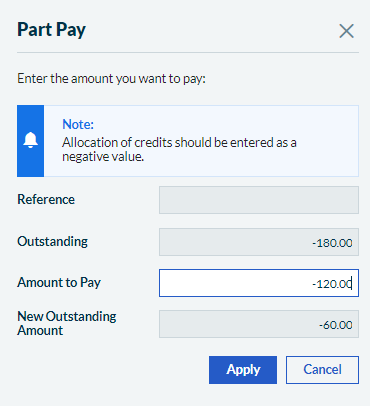 - If you allocated multiple transactions at the same time, and you only want to unallocate one invoice and credit note, the remaining transactions are unaffected.
- Select Save.
The credit note status now shows as Unpaid. You can now edit the credit note. If the invoice has been paid, you must unallocate the payment from the invoice before you can make changes. This will temporarily leave the payment as a payment on account. We will reallocate this payment later. - From within the invoice, go to the top right underneath Amount Paid.
- Select the 1 payment option in green.
- Select the Amount.
- Untick the invoice.
- Select Save.
- Select Yes, to save as a payment on account.
Next we need to deal with the VAT reconciliation status. If the credit note is included on a submitted VAT Return you can't edit or void the credit note. Instead, you must reverse the credit note with an invoice which will cancel out the impact. However, if the credit note is included on a draft VAT Return, you can delete the draft return then edit or void the credit note. To reverse a credit note: - From Sales, select Sales invoice.
- Create an invoice with the exact details as the original credit note.
- If required, enter a reference. For example, Credit Note reversal.
- Enter any notes, and Save.
- From Contacts, select Customers.
- Open the relevant customer.
- From the Manage dropdown, select Account Allocations.
- Select the check boxes next to the credit note and the new invoice, and Save.
The invoice is included on your next VAT Return and your VAT liability is adjusted accordingly. Would you like to edit or delete the sales credit note? - From within the credit note, select Edit.
- Edit the required information.
- Select Save.
You've successfully amended your credit note. For audit purposes, you can't delete the credit note entirely, instead you must void the credit note. This also means you won't be able to reuse the same credit note number. - Go to Sales, then Sales Credit Notes.
- Find the relevant Sales Credit Note and select it.
- Select Void.
- Enter a reason, for example: "invoice raised in error" then select Void.
Edit or delete a Quick Entry Sales credit note If you need to edit or delete a Quick entry sales credit note in Sage Accounting, the steps vary based on different factors like if the credit note is VAT reconciled or paid. We've created a wizard to guide you through the process step by step. To get started, click the button below. This content is coming soon. This content is coming soon. [BCB:281:UKI Wizard:ECB] [BCB:276:UKI - hide back button:ECB] |
|