With Pay Now, you can create an invoice in Sage Accounts and send it to your customer with a Pay Now option. The customer who receives this can choose Pay Now to make a card payment using Opayo.
How to use Opayo
Summary
How to use Opayo in Sage 50 Accounts.
Description
Once you've set up Opayo, you can use it to trade online and fully integrate transactions with Sage Accounts. This saves you time and gives you the advantage of knowing that the data in Sage Accounts is what your customer entered online.
Resolution
Using Opayo in Sage 50 Accounts
Use the Pay Now option
You can choose from the following layouts and letters:
| Name | File Name | Location |
|---|---|---|
| E-Mail Invoice (Euro) - With Sage Invoice Payments or Opayo by Elavon | EMA_INV_SAGEPAY.layout | Invoices and credits > Print. |
| E-Mail Invoice (Euro) (Tax Breakdown) - With Sage Invoice Payments or Opayo by Elavon | TBEMI_SAGEPAY.layout | Invoices and credits > Print. |
| e-Mail Statement - All Items - With Opayo by Elavon | EMASTAL_SAGEPAY.layout | Customers > Statements. |
| e-Mail Statement - O/S Only - With Opayo by Elavon | EMASTOS_SAGEPAY.layout | Customers > Statements. |
| Itemised Chase Letter 1 (Reminder) - Balances> 30 days o/s - Opayo by Elavon | ICHASE1_SAGEPAY.letter | Customers > Letters. |
| Itemised Chase Letter 2 (Warning) - Balances> 30 days o/s - Opayo by Elavon | ICHASE2_SAGEPAY.letter | Customers > Letters. |
| Itemised Chase Letter 3 (Legal) - Balances> 30 days o/s - Opayo by Elavon | ICHASE3_SAGEPAY.letter | Customers > Letters. |
If you want to add the Pay Now option to any further layouts, contact Sage technical support.
Enter an email address on a customer record
You can't download Opayo transactions for foreign customers or customers with addresses outside the UK or Ireland. Enter these transactions manually.
- Click Customers then select the required customer record and click Edit.
- In Email 1, Email 2 or Email 3, enter the customer's email address.
- Click Save then click Close.
Send an Opayo letter or layout by email
These steps explain how to send an invoice by email. To send a statement by email, open Customers > Statements > proceed from step 2. To send a letter by email, open Customers > Letters > proceed from step 2.
- Click Invoices and credits and select the required invoice then click Print.
- Click Layouts and select an Opayo layout then click Email.
Pay the invoice by Opayo
- Open the invoice and click Pay Now.

- In the Transaction Overview window, click Proceed.
- Complete the billing details then click Pay Now.
- Choose UK or Ireland from the Billing Country dropdown list. You can choose either option here as this doesn't affect the card payment.
If you need to enter a different country, you can enter this later when entering your card details. - In the Select Payment Method window, click the card type.
- Enter the card details then click Confirm card details.
- Confirm the details are correct then click Pay £##.## Now.
- In the Card Authentication window, complete the details and click Submit Query.
The Payment Successful window appears.
You can now download these transactions into your Sage Accounts software. For more information about this, refer to the section How to download payments and transactions.
Request card payment
The Request Card Payment option generates a link that you can share in an email, making it easy for your customers to pay you online. You can use this option to request a payment from your customer without first raising an invoice or order.
The Request Card Payment option is available in the following areas of the software:
- Customers
- Customers > Activity
- Customer record > Activity
- Customer > Communication > Add Entry
- Customer > Aged Debt > Detailed
To create a request card payment link:
- Click the Request card payment option:

- Enter the amount you want to request from your customer then click Generate Link.
Copilot said:
Sage 50 Accounts download the payment after your customer pays. For more information, see How to download payments and transactions below.
How to receive payment by card
Sage 50 Accounts download the payment after your customer pays. For more information, see How to download payments and transactions below.
The Pay Deposit by Card option is only available when you select Post as Payment on Account (SA) Payment Type. In this scenario, the person using Sage 50 Accounts processes the payment through Opayo. You can't download Opayo transactions from customers with an address outside the UK or Ireland. Enter these transactions manually.
- Click Bank accounts and select the bank account used for Opayo transactions.
- Click Customer receipt then click the Account dropdown and choose the required customer record.
- Enter the transaction values as normal then click Pay by card.
- In the Transaction Overview window, click Proceed.
- Complete your billing details then click Pay Now and enter any address details to process a payment internally.
- In the Select Payment Method window, click the card type.
- Enter the card details then click Proceed. If the country doesn't have a Post Code, enter 000 in the Billing Post Code.
- Confirm the details are correct then click Pay Now.
- To print a receipt, click Yes.
- If you chose to pay an invoice, in step 3, a Sales Receipt (SR) allocates to the invoice. If you chose to post a Sales Payment on Account (SA), you can allocate this when ready.
How to download payments and transactions
If you use a web shop, or the Pay Now button, this option downloads those payments. You can't reverse this procedure, back up the data before proceeding.
All transaction values come from the payment value in Opayo.
You can't download Opayo transactions from foreign customers or customers with an address outside the UK or Ireland into Sage Accounts. Enter these transactions manually.
- Click Bank accounts then click Download receipts.

- Enter the date you want to download transactions from.
The option to enter a date only appears the first time you download transactions. Sage Accounts records the transactions you download, therefore the next time you download transactions it continues from the last transaction downloaded. - Click Download now.
The Invoice window appears and lists any payments received via the Pay Now option.
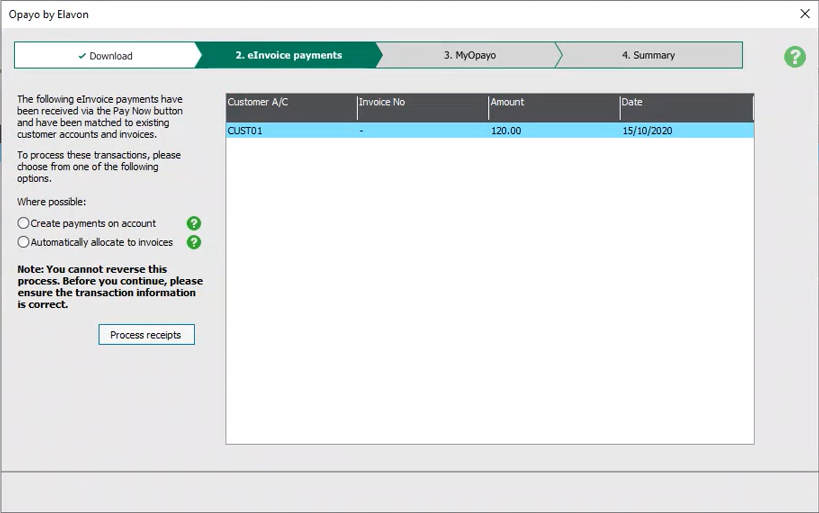
- Select one of the following options for Invoice payments:
For standard VAT, proceed to step 7. For VAT Cash Accounting, continue from step 5.Create payments on account Opayo posts an SA transaction. Automatically allocate to invoices Opayo posts an SR transaction. The SR automatically allocates to the invoice with the same reference. If the payment total exceeds the invoice value, Sage allocates the remaining amount to the earliest dated invoice. - Process receipts > Tax Codes column > for each transaction, select the relevant tax code.
To split a transaction against multiple tax codes, on each line, select the required tax code and enter the required amount. - Click OK.
- Process receipts.
A window shows, listing the matched and unmatched transactions. For each transaction, you can choose to create a new customer record or match to a record.
For any unmatched transactions, the New checkbox is selected by default. Clearing the checkbox allows you to select a customer record to match the transaction to. - When you've matched all transactions, or set to New click Process transactions.
- In the Summary window, to view more information about an area click View.
To print the information, or export it to Excel, use the options at the bottom of the window. - Click Close.
 NOTE: You must manually process any refunds issued via Opayo in Sage 50 Accounts.
Solution Properties
- Solution ID
- 250321151935740
- Last Modified Date
- Thu Aug 13 12:34:50 UTC 2026
- Views
- 0