Transfer subscriptions to another Accountant
Summary
How to transfer subscriptions in Client Management.
Description
To transfer a Sage Business Cloud product subscription to another Accountant.
Resolution
- Open your client in Client Management.
- Click Products.
- Open the Subscription actions dropdown and select Transfer subscriptions.
- The Transfer subscription ownership sidebar appears. It lists the active subscriptions you own on behalf of your client.

- Click Continue.
- Choose who to transfer the subscription ownership to. Select Another accountant or bookkeeper.
- Enter the Accountant ID. This is a Client Management unique code assigned to each practice.
 NOTE: you haven't got the Accountant ID, ask the accountant to provide the ID from the Invitations area in Client Management.
 - Click Check. If the ID doesn’t validate, ask the accountant to confirm the code.
- Click Continue.
- Review the Terms and Conditions and tick the box.
- Click Send the transfer request.
- You'll see a success message to say the subscription transfer's sent.
- Click Close.
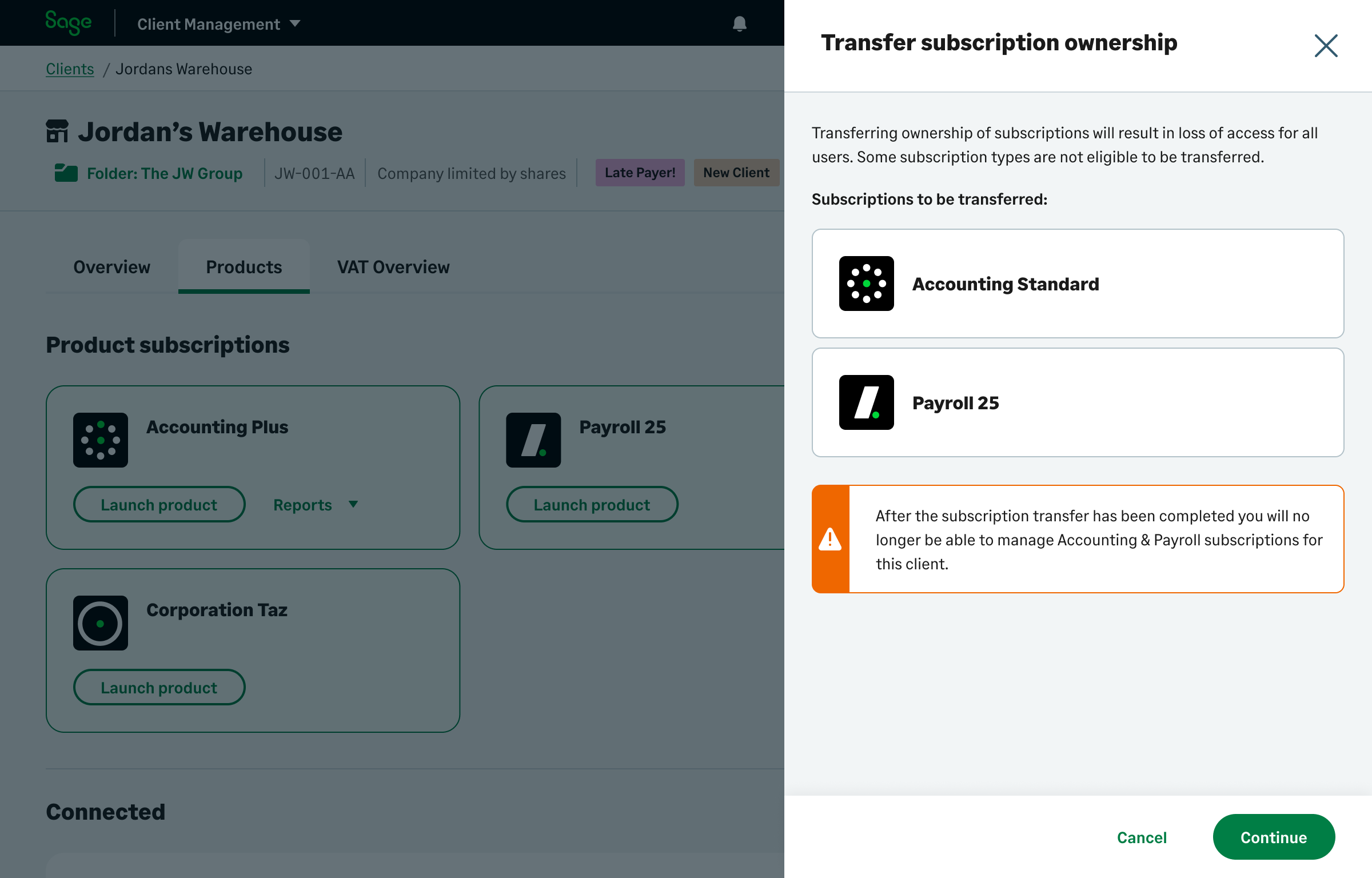
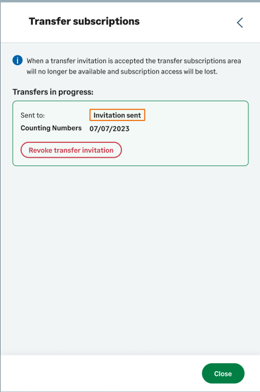
Click Transfer subscriptions to view the status sidebar.
Solution Properties
- Solution ID
- 240318111402207
- Last Modified Date
- Thu Sep 18 09:51:18 UTC 2025
- Views
- 0