

Summary
How to transfer subscriptions in Client Management.
Description
To transfer a Sage Business Cloud product subscription to another Accountant.
Resolution
- Open your client in Client Management.
- Click Products.
- Open the Subscription actions dropdown and select Transfer subscriptions.
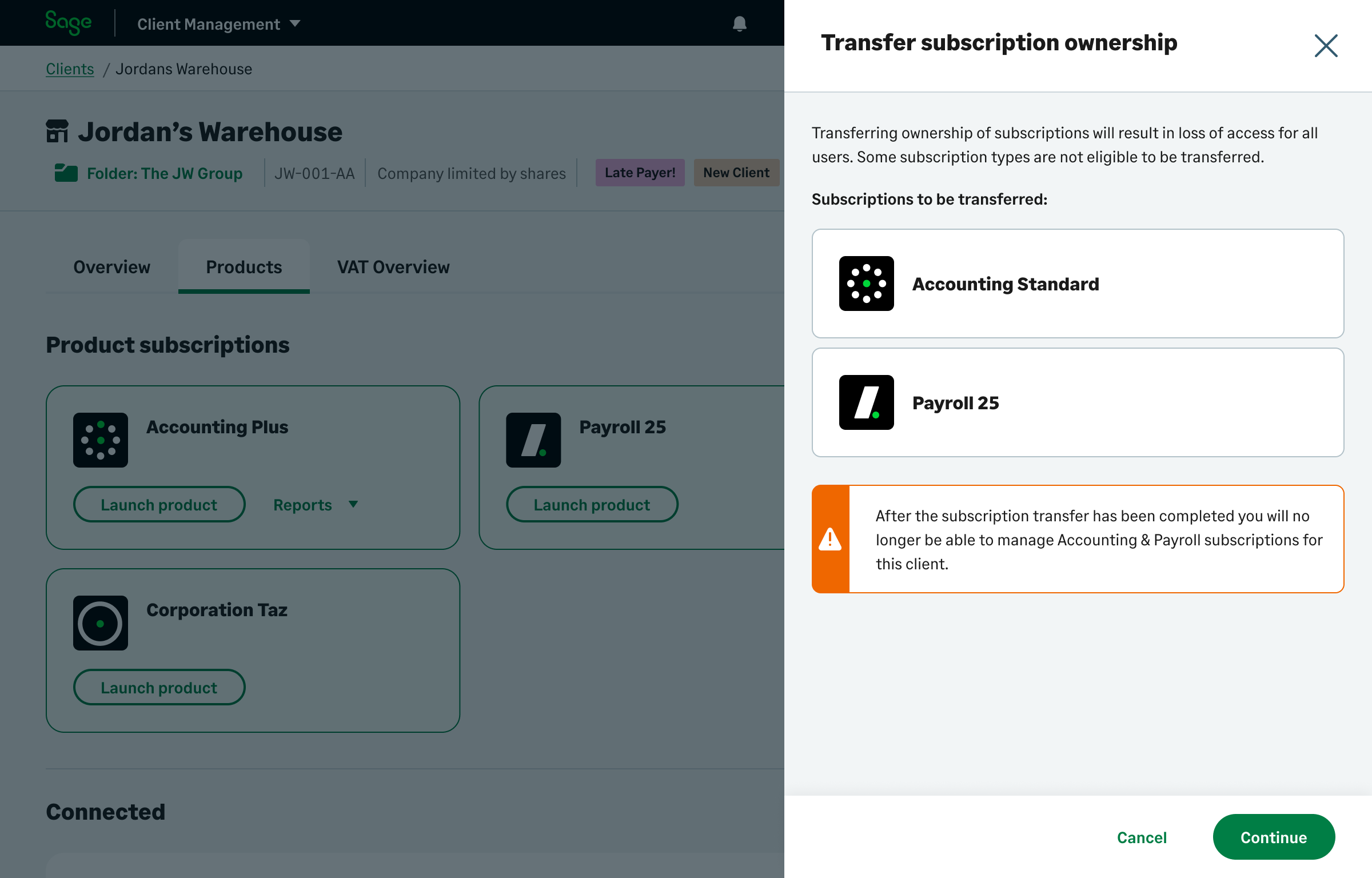
- The Transfer subscription ownership sidebar appears. It lists the active subscriptions you own on behalf of your client.

- Click Continue.
- Choose who to transfer the subscription ownership to. Select Another accountant or bookkeeper.
- Enter the Accountant ID. This is a Client Management unique code assigned to each practice.
 NOTE: you haven't got the Accountant ID, ask the accountant to provide the ID from the Invitations area in Client Management.
 - Click Check. If the ID doesn’t validate, ask the accountant to confirm the code.
- Click Continue.
- Review the Terms and Conditions and tick the box.
- Click Send the transfer request.
- You'll see a success message to say the subscription transfer's sent.
- Click Close.
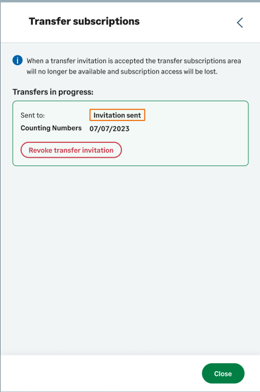
Click Transfer subscriptions to view the status sidebar.
 Africa
 Asia
Asia Australia
 Canada
 France
 Ireland
 Kenya
Kenya Nigeria
 Portugal
 South Africa
 Spain
Spain United Arab Emirates
 United States
 Germany