

Summary
How to add a client to an existing client folder within Client Management.
Description
Follow the below steps to add a client to an existing client folder.
Resolution
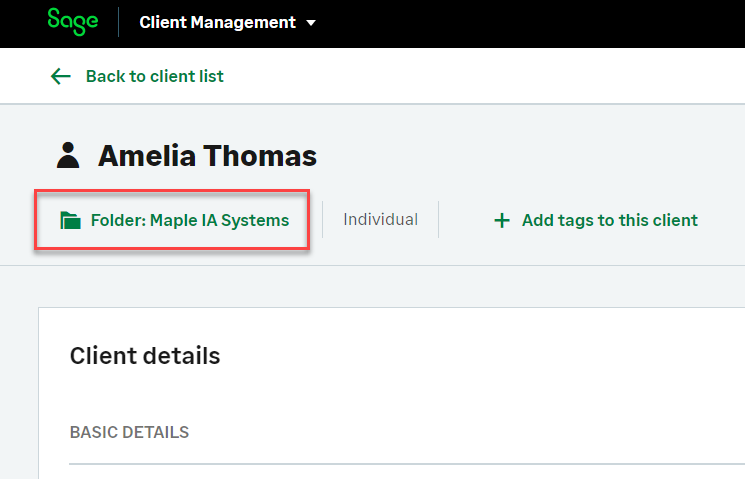
- Find your folder in the Clients and prospects list and select any of the existing clients.
Select the folder button. This will show the name of the client folder.

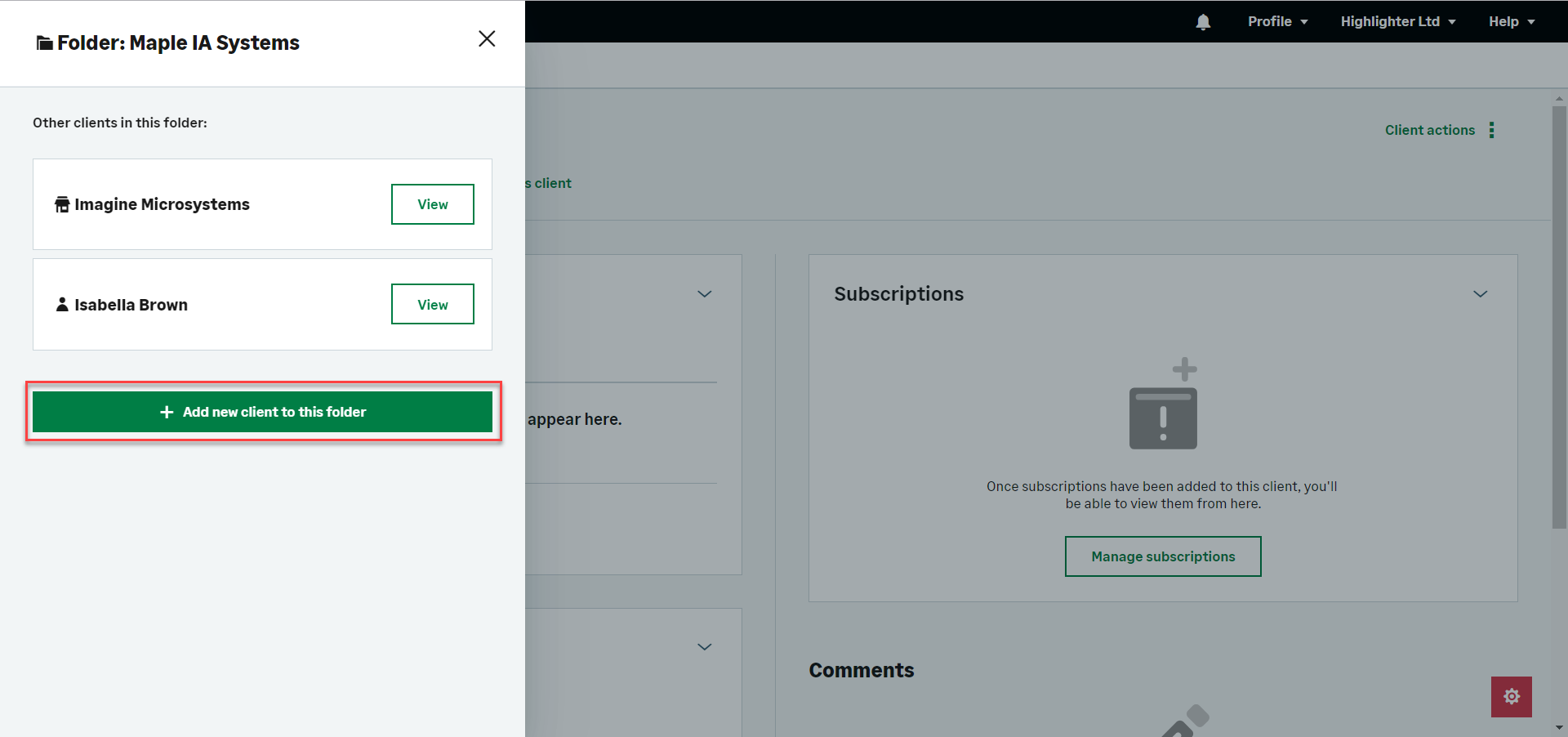
- The folder sidebar appears.

Select Add a new client to this folder.
- Choose the folder to add the client into, then select Next.
- Choose a client type.
- Fill in the necessary fields for your client. These will differ depending on the client type you've selected.
- Work through the wizard, selecting Next when you've completed each page.
- Select Save.
 Africa
 Asia
Asia Australia
 Canada
 France
 Ireland
 Kenya
Kenya Nigeria
 Portugal
 South Africa
 Spain
Spain United Arab Emirates
 United States
 Germany