Import stock adjustments
Summary
How to import in bulk any stock adjustments in Sage Accounting.
Description
Save time by recording your stock adjustments using a CSV file and update all your stock levels at once.
Resolution
Download the CSV file template
Use our template to make sure your CSV has the correct column headings.
- Go to Products and Services.
- Select the arrow next to New item and select Import Stock Adjustments.
- Select the template CSV file link.
Prepare your CSV file
Remove the example information from the template file and replace it with your own stock adjustment data. Use the guidance below:
- Headings- The headings in the CSV file must exactly match the headings used in our CSV file template
- Item Code- Enter the item code as it displays in accounting
- Adjustment Quantity- Enter a positive number ('5') to increase stock level, or a negative number ('-5') to decrease it
- Date- Enter a date using the XX/XX/XXX format or leave it blank to use today's date
- Cost Price- Enter a cost price when you increase the stock level, and leave it blank when you decrease it
- Reason- If you leave this blank, we set the reason to 'Other'
▼ Check the template headings and formats
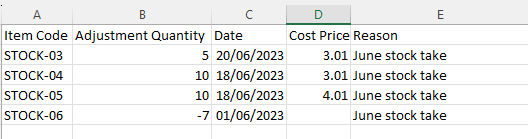
Remember that the header row in your CSV file must use the same headings as shown in the Column heading in the table.
| Column Heading | Format | Mandatory | ||
|---|---|---|---|---|
| A | Item Code | Text and numbers | Yes | |
| B | Adjustment Quantity | Number (max. two decimal places) | Yes |
|
| C | Cost price | Number (max. two decimal places) | Yes - if you increase the quantity. |
|
| D | Date | Number DD/MM/YYYY | Yes |
|
| E | Reason | Text (Max. 50 characters) | Yes |
Import your stock adjustments
- Go to Products and Services.
- Select the arrow next to New item and select Import Stock Adjustments.
- Browse to your file and choose Open.
A message confirms how many records the import completed successfully.
Solution Properties
- Solution ID
- 230725143517593
- Last Modified Date
- Thu May 14 09:51:21 UTC 2026
- Views
- 0