

Description
Resolution
Congratulations on your move, lets get you up and running with Sage Payroll. You can import your information to Sage Payroll, and automatically create your employee records. This is often faster, and more accurate than entering the data manually.
To import your employee information you'll need your latest Full Payment Submission (FPS) file from Sage Instant Payroll.
Export your FPS
If you haven't already got your FPS file, follow our simple guide to export it from Sage Instant Payroll.
Import your FPS
To make the migration process easier you can import your employee details into Sage Business Cloud Payroll. This automatically creates your employee records.
Import the FPS file
When you first open Sage Payroll you have three ways to set up your company. As you are migrating from Sage Instant Payroll, we recommend you Import Employees. This is usually the fastest way to get up and running.
- From within Sage Payroll, select Import employees.
- Check the importing information, then select Next.
-
Select Upload FPS, browse to FPS file you saved earlier.
If you don't have an FPS file, read our guide on how to Export your FPS file from Instant Payroll (opens in new tab)
- Select Next, then Personal data only.
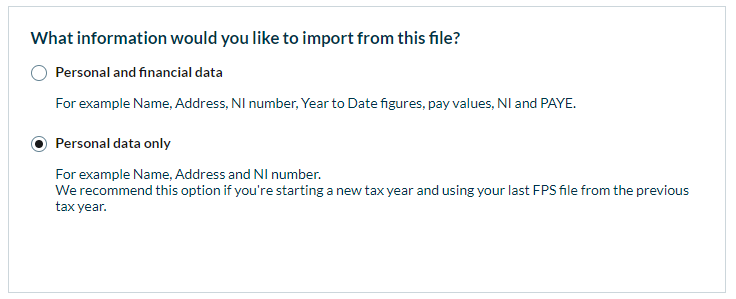
- Select Next, then Confirm.
- Finally, select Complete Import.
You have now successfully imported your Full Payment Submission into Sage Business Cloud Payroll, and are prompted to complete a checklist.
Important
It's important you complete the checklist in full before your first pay run to avoid any submission problems.
For detailed information on what to do for each step in the checklist, see the review employees support article.
FPS Import errors
If you're seeing an error about the PAYE reference or Accounts Office Reference not matching, verify the details have been entered correctly:
-
Select Go to Payroll Settings.
-
Ensure both the PAYE Reference and Accounts Office Reference are correct, and match with the information in your FPS.
-
Select Save, then upload your FPS again.
For detailed instructions on how to fix all FPS import errors, see our FPS Import Errors support article.
Next steps
After you've completed the employee checklist, you are ready to process your first pay run. For detailed instructions on how to process your first pay run, see our support article.
Watch a webinar
Our live sessions are a great way to learn from Sage experts. Get involved with a chance to ask questions or simply sit back and watch.
 Africa
 Asia
Asia Australia
 Canada
 France
 Ireland
 Kenya
Kenya Nigeria
 Portugal
 South Africa
 Spain
Spain United Arab Emirates
 United States
 Germany