Delete a purchase invoice
Summary
How to delete a purchase invoice in Sage Accounting.
Description
This explains how to delete a purchase invoice. The method used depends on whether it's been paid or included on a VAT Return.
If the invoice has been
- Paid - unallocate the payment first to remove the payment from the invoice
- Paid with a credit note- unallocate the credit note first to remove the link to the credit note
Included on a VAT Return - you cannot delete the invoice. Reverse the invoice value with a credit note instead
Resolution
Delete a purchase invoice
Once the invoice is unallocated and shows as Unpaid, you can delete it.
- From Purchases, select Purchase Invoices.
- Select the check box next to the relevant invoice.
- Choose Delete, from the toolbar.

The invoice will no longer appear in your accounts.
Unallocate the payment from the invoice
Unallocate the credit note from the invoice
When you create a credit note and allocate it to an invoice, we create an allocation transaction. This transaction holds the details of linked credit notes and invoices.
Before you can edit or delete an invoice that’s been paid using a credit note, you must edit the allocation transaction.
- From Contacts, then select the required supplier.
- From the Activity tab, open the relevant supplier allocation transaction.
The allocation transaction date is the date you allocated the invoice and credit note.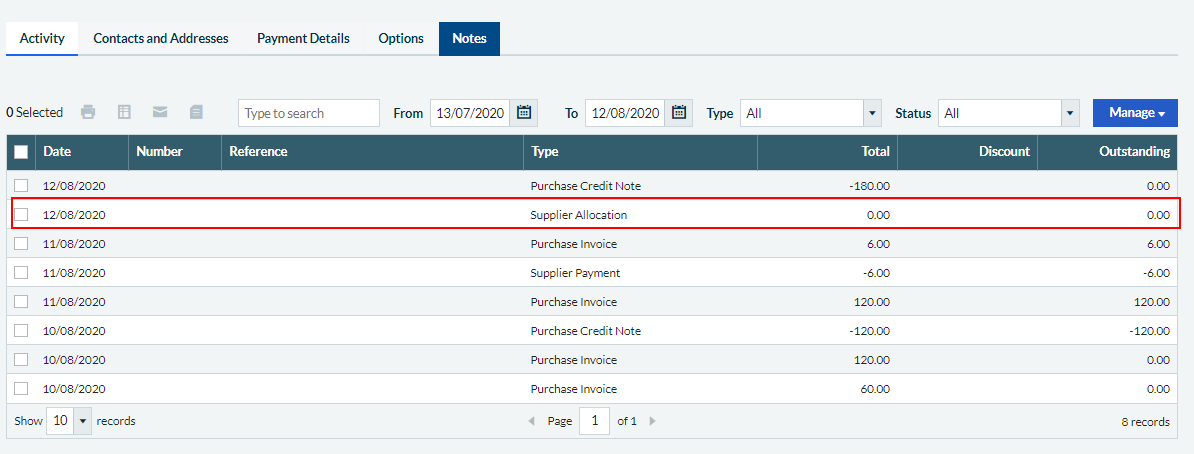
- If the credit note is allocated to a single invoice, clear the checkboxes for both the invoice and the credit note.
If the credit note is allocated to multiple invoices, and you just want to unallocate one invoice:
- Clear the checkbox for the invoice being unallocated
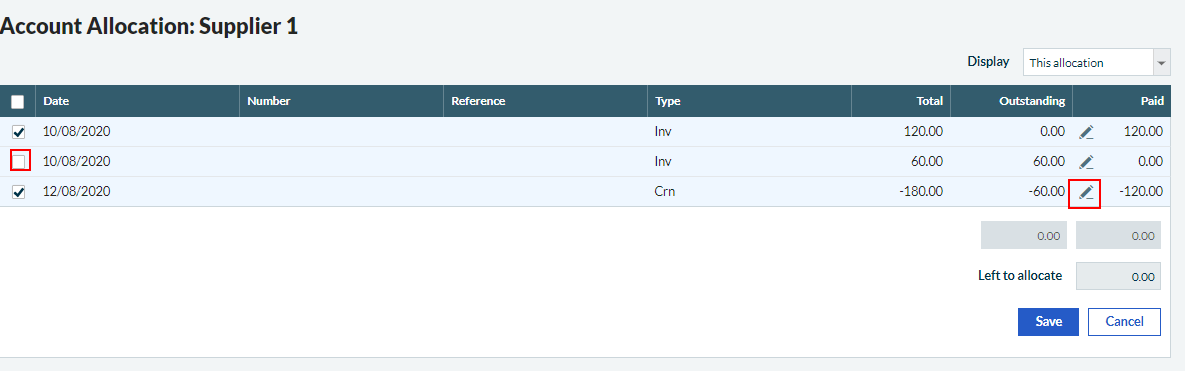
- Amend the amount outstanding on the credit note. Select
 and adjust the Amount to Pay to match the total of the remaining allocated invoices. For example, a credit note with a total value of 180 is allocated to 2 invoices, one for 60 and one for 120. The £60 invoice has been unallocated, so adjust the Amount to Pay to -120.00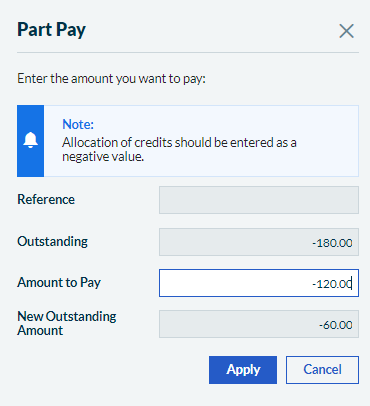
- Clear the checkbox for the invoice being unallocated
Related Solutions
Solution Properties
- Solution ID
- 222001000101072
- Last Modified Date
- Mon Mar 18 15:45:47 UTC 2024
- Views
- 0