Edit and manage suppliers
Summary
Description
Keep track of what you've bought from the supplier's contact record. From here you can see how much you owe the supplier and track individual purchases.
 NOTE: In Accounting Start, you can't input Purchase invoices. If you wish to upgrade your subscription so you can enter supplier invoices.
Resolution
Edit a supplier
- Go to Contacts.
- Select the supplier from the list.
- Change the required details on the relevant tabs. Select edit
 next to each section to make changes.
For more information about each tab, read more on creating a supplier contact >
Summary details
The top of the page is a summary of the key information about the supplier's account. This shows you details about the amount Purchased as well as the main contact details. It also shows whether the supplier is Active or Inactive.
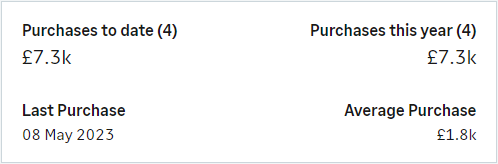
How we calculate the numbers >
Track payments
Use the Activity tab to find details of payments for each supplier.
Just double-click on a row to open the transaction. Depending on its status, you can edit, print or delete it.
Change the dates at the top of the list to find older transactions. This defaults to the last calendar month.
Related Solutions
Solution Properties
- Solution ID
- 222001000100132
- Last Modified Date
- Wed Nov 12 11:51:04 UTC 2025
- Views
- 0