Correct transactions
Resolution
Use the Correct transactions option to change the ledger account or analysis type on transactions that have been paid, allocated, included on a VAT Return or included on a bank reconciliation.
You cannot use this to change to or from any CIS ledger accounts. This is because we use the CIS ledger accounts to make CIS is deductions.
What you need to know
Use this for
- Paid invoices and credit notes
- Credit notes and invoices allocated to each other
- VAT reconciled invoices and credit notes
- VAT reconciled payments and receipts
- Bank reconciled payments and receipts
 NOTE: Note: It's not possible to change the description, or other text items using this process. Reconciled invoices and credits cannot have the text description or their line item descriptions edited.
Users
Only one user at a time can make a correction. When more than one user is making corrections, wait for other users to fully complete their correction before making your own changes.
Only users with full access rights can make corrections. Other users can only see the corrections history.
Control Accounts
You can't add or remove a Control Account ledger for a transaction using Correct Transactions. These are ledger accounts automatically assigned and include bank accounts, Trade Debtors, Trade Creditors, and VAT.
Other ledger accounts
Some ledger accounts can be set up so they can only be used on certain transaction types. You can't change to a ledger account that is not set up to be used on this transaction type. For example, you can't change the ledger account on a purchase invoice, to one set up for Sales only.
Analysis types
You can't change to an analysis type that's not set up the transaction type. For example, You change the analysis type on a purchase invoice to on that's only set up for Sales.
Find transactions to change
- From Adjustments, select Correct Transactions.
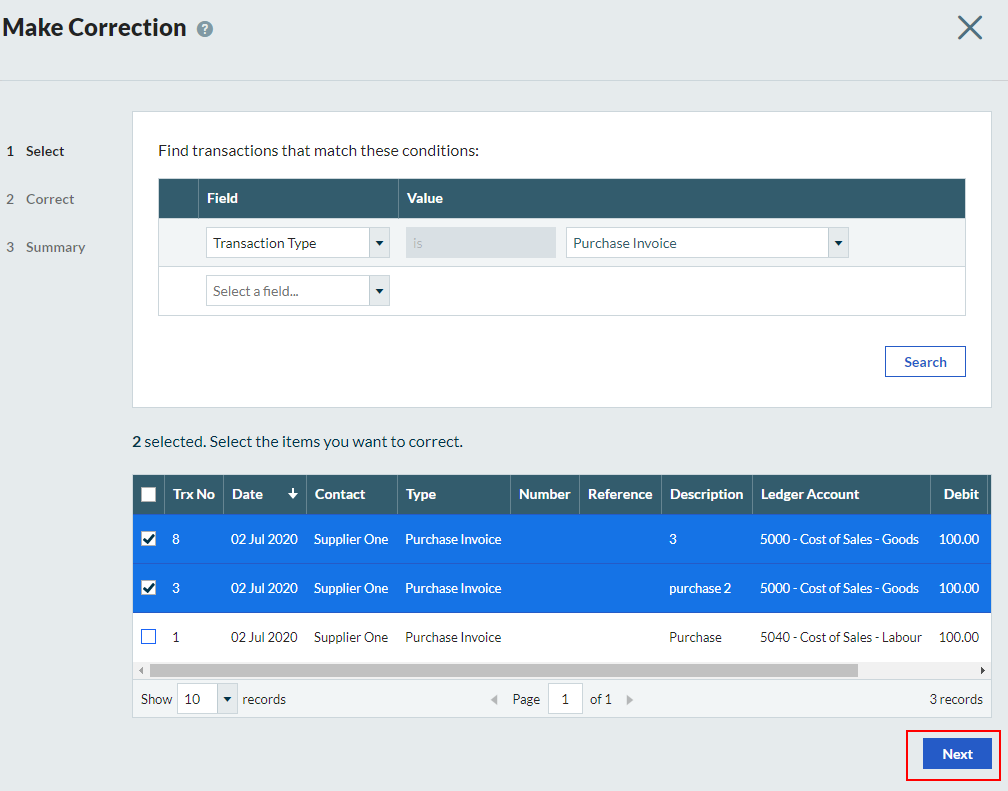
- Select Make Correction.
Use the search criteria to find the relevant transactions.
For example,
If you've created a number of purchase invoices for different suppliers and want to change the ledger account from 5000 to 5010, use the Ledger Account and Transaction Type to narrow your search.

- Select Search.
- Select the transactions you want to correct and click Next.

Change the ledger account or analysis type
- Choose the new ledger account or analysis type from the Change to… dropdown list.
- If required, enter the reason for changing the item.
- Select Review, and then Update.
Transaction was not updated
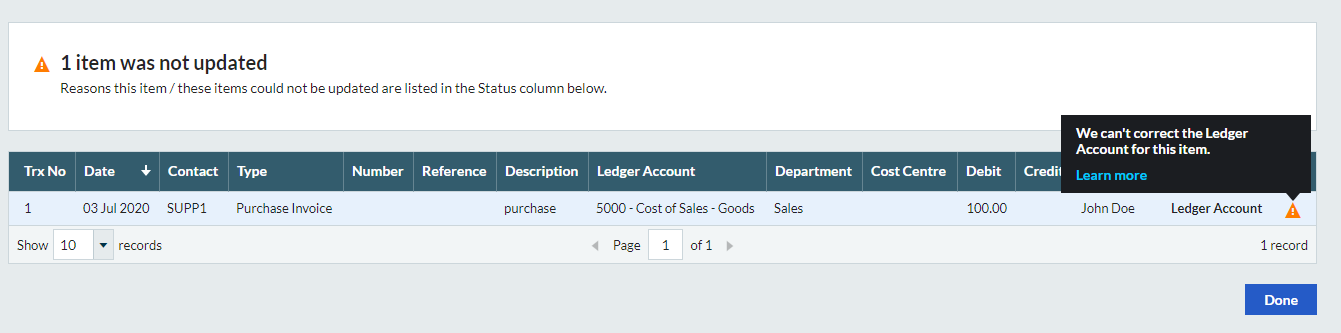
If we can't complete the change you requested, this message is shown
xxx items not updated. Reason this item / these items could not be updated is listed in the status column below.
To check why the change could not be made by, hover over the warning triangle in the status column. You may need to scroll to the right.
Check previous corrections
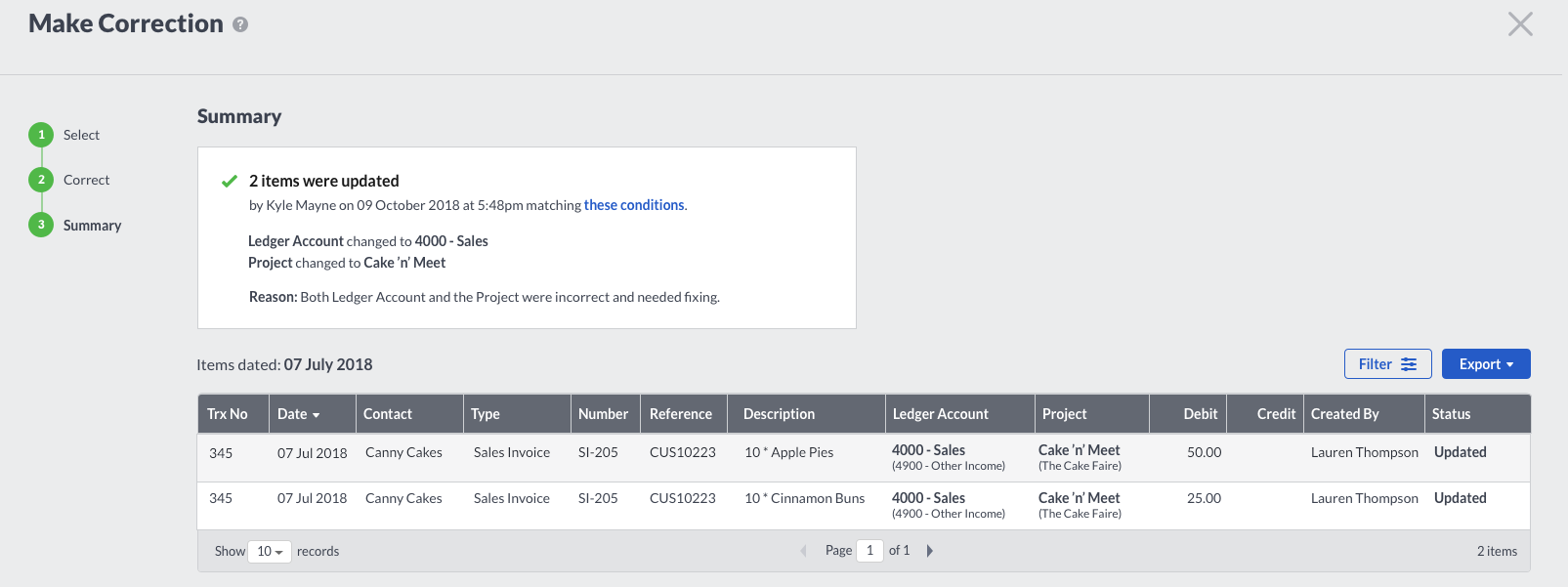
Once a correction has been made, it's shown on the Summary page. If you corrected multiple transactions, select the correction to see the details.
Solution Properties
- Solution ID
- 222001000100011
- Last Modified Date
- Thu May 25 09:13:03 UTC 2023
- Views
- 0