

Summary
Description
Once you've created a sales invoice, it's good to track their status to keep up to date.
Tracking their progress helps you monitor the status of each invoice you've created.
Resolution
The document timeline
The document timeline will give you important insight into your sales invoices. Within each invoice, you can:
- See when you created the invoice
- Check when you sent an invoice and if it's been delivered
- Find out when your customer read the email
- See when a customer paid an invoice and if it's paid in full
How to see the timeline
- In Accounting, go to Sales, then Sales Invoices
- In Accounting Start, select Sales
Find the invoice and select it to open it. The document timeline is in the top right.

What does each status mean?
Hover over Created, Sent, Viewed and Paid on the document timeline to see more information.
| Created | Shows the date and time you created the invoice. |
| Sent | Sent as PDF – Shows when you print the invoice. If you then email the invoice, it will change to Emailed. Emailed – Shows the customer's email address, with the date, time and recipient for the email you sent.
|
| Viewed | Shows the email address and date when the customer viewed the email. If tracking is important, clear the Include attachment check box in the email window. If your customer hides read receipts, the Viewed status won't update. This means your customer may have viewed the sales invoice even if the status hasn’t changed. To use the viewed status, email the invoice when you create it, or when you click into the individual invoice. You can't track the viewed status if you email it from the Sales Invoices page. |
| Paid | The Paid status shows the date of the last payment recorded on the sales invoice. The colour of the pip indicates the payment status:
|
 TIP:
TIP: If you need to change the email address you send the invoices from or want to customise the invoice, set up default email messages.
Email History
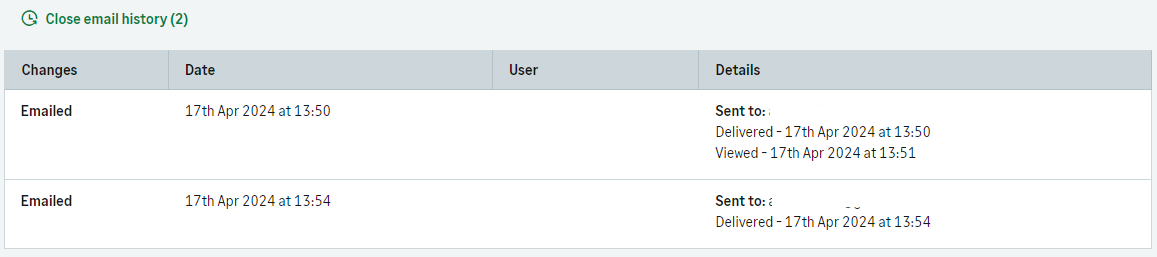
If you've sent your invoices to your customers, you can see the history of the email activity.
This includes who you sent the email to, the time and date of delivery, and when the customer viewed the invoice.
- Open the relevant Sales Invoice.
- Select Show email history.

- Details of the email activity appear.
 Africa
 Asia
Asia Australia
 Canada
 France
 Ireland
 Kenya
Kenya Nigeria
 Portugal
 South Africa
 Spain
Spain United Arab Emirates
 United States
 Germany