Turn on email previews When you first set up SMTP email settings, Preview Before Sending is selected by default.
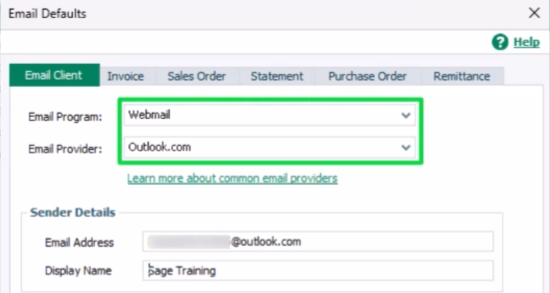 To check or change this setting: - On the menu bar, select Settings, then Email Defaults.
- On the Email Client tab, check Email Program is set to Webmail.
- Select the relevant tab, for example Invoice.
- Under Email Sending Options, set Sending Options to Preview Before Sending.
- Press OK.
You can also set this option for Sales Orders, Statements, Purchase Orders and Remittances.
Preview an email When you email a document, the Review emails window opens so you can check it before sending. For example, to preview an invoice: - Open Invoices and Credits.
- Select the invoice you want to email, then click Email. This opens the Review Emails window.
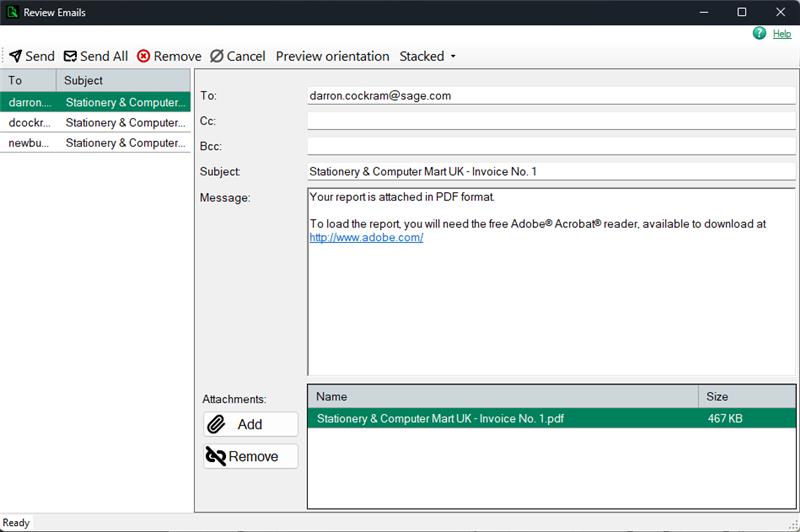
- In the Review emails window, select the email you want to check.
- Review the email details, message and attachments.
- When you're happy, press Send.
TIP: To preview an attached PDF, double-click the attachment to open it in a separate window.
Edit an email You can make changes to individual emails directly in the Review emails window.
 Select an email from the list, then edit any of the following: - To, Cc and Bcc: Add or change recipients.
- Subject: Change the email subject.
- Message: Edit the email message.
Any changes you make only apply to the current email and aren't saved to your default email settings.
Add or remove attachments You can add or remove attachments before sending an email. To add an attachment: - Select the email you want to edit.
- Press Add.
- Browse to your file, then press Open.
To remove an attachment, select it and choose Remove. NOTE: Attachment size and file type restrictions depend on your email provider.
Change the preview layout You can change how emails appear in the Review emails window. Next to View, select the dropdown and choose: - Right: Show the preview on the right.
- Left: Show the preview on the left.
- Bottom: Show the preview below the email list.
- Off: Hide the preview.
You can also drag the divider to resize the preview area.
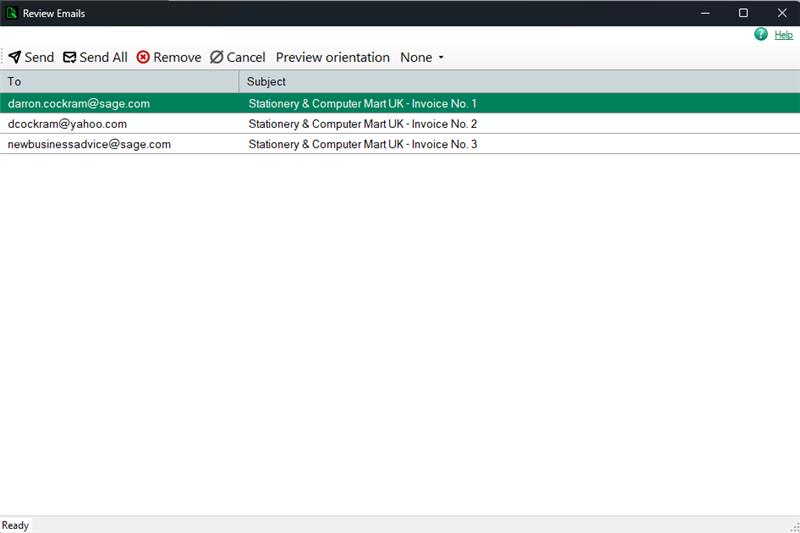
Review and send multiple emails When you select multiple documents to email, you can review them together in the Review emails window. If several documents are for the same customer, their PDFs are grouped into a single email. You can then: - Send: Send the selected emails.
- Send All: Send all remaining emails.
- Remove: Remove selected emails from the list without sending them.
A progress bar shows how many emails are being processed. Once all emails have been sent, the window displays There are no emails to review.
If an email fails to send If an email can't be sent, it stays in the Review emails window so you can correct the issue and try again. For example, if an email has no recipient, the message No recipients have been specified appears. To fix this: - Press OK to close the message.
- Select the email that wasn't sent.
- Enter the missing email address in the To field.
- Press Send to try again.
Any other emails that sent successfully won't be affected.
Cancel email previews To close the Review emails window without sending any remaining emails, select Cancel. Any unsent emails and changes you've made in the window are discarded. |