Import stock adjustments
Description

Save time by recording your stock adjustments using a CSV file and update all your stock levels at once.

Cause
Resolution

Download the CSV file template

Use our template to make sure your CSV has the correct column headings.

  1. Go to Products and Services.
  2. Select the arrow next to New item and select Import Stock Adjustments.
  3. Select the template CSV file link.

Prepare your CSV file

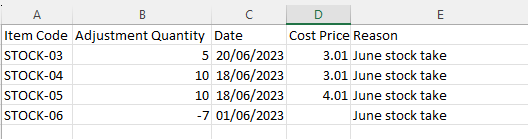
Remove the example information from the template file and replace it with your own stock adjustment data. Use the guidance below:

  • Headings- The headings in the CSV file must exactly match the headings used in our CSV file template
  • Item Code- Enter the item code as it displays in accounting
  • Adjustment Quantity- Enter a positive number ('5') to increase stock level, or a negative number ('-5') to decrease it
  • Date- Enter a date using the XX/XX/XXX format or leave it blank to use today's date
  • Cost Price- Enter a cost price when you increase the stock level, and leave it blank when you decrease it
  • Reason- If you leave this blank, we set the reason to 'Other'

NOTE:

The import will fail if the adjustment quantity decreases the stock level to zero or a negative value.

▼ Check the template headings and formats

Remember that the header row in your CSV file must use the same headings as shown in the Column heading in the table.

  Column Heading Format Mandatory  
A Item Code Text and numbers Yes  
B Adjustment Quantity

Number

(max. two decimal places)

Yes


C Cost price

Number

(max. two decimal places)

Yes - if you increase the quantity.


D Date

Number

DD/MM/YYYY

Yes


E Reason

Text

(Max. 50 characters)

Yes  


Import your stock adjustments

  1. Go to Products and Services.
  2. Select the arrow next to New item and select Import Stock Adjustments.
  3. Browse to your file and choose Open.

A message confirms how many records the import completed successfully.
Steps to duplicate
Related Solutions