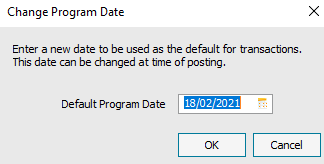
The date that appears when you enter a transaction is the program date. To save time when posting multiple transactions with the same date, change the default program date instead of updating each transaction individually. This only affects the computer you're using.
Cause
Resolution
On the menu bar, select Settings, then choose Change Program Date.
Enter the new date then press OK.
TIP:
The program date refreshes when you open the software. If you leave your software open overnight, the program date doesn't refresh automatically.